
Contents
- Overview
- Pre-conditions
- Steps
- Supplementary Information
- Notes
Overview
Connect an MCP-compatible AI assistant to Clausematch to perform read and/or write actions:
-
search authorised documents
-
read their content and metadata
-
carry out permitted document or administrative work
MCP (Model Context Protocol) provides a common connection for compatible assistants such as Microsoft Copilot, ChatGPT, Claude, Amazon Q and Cursor; a separate Clausematch integration is not required for each vendor.
The assistant acts as the person who signs in. Connecting does not grant additional Clausematch permissions.
Pre-conditions
-
MCP has to be enabled firstly for the Clausematch platform, and more so your user needs to be whitelisted with sufficient tools (permissions for your assistant) by an administrator: Control Access to AI Chat, AI Actions and AI Assistant (MCP)
- Your existing Clausematch system and document permissions must allow the work you want the assistant to perform.
- Use an organisation-approved assistant and review your agreement with its provider before sharing content.
Steps
-
From your AI Assistant's platform (e.g. Microsoft Copilot), add an MCP server connection in your AI assistant, using https://<your-instance>/api/v1/mcp.
- Replace <your-instance> with your organization's instance address (you can find this out simply by accessing the Clausematch platform and checking our your browser's URL).
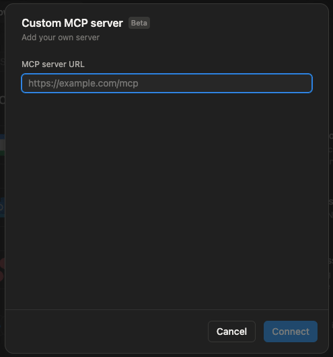
- For technical assistance needed, visit the AI assistant vendor's documentation or seek advise from your IT team.
- Replace <your-instance> with your organization's instance address (you can find this out simply by accessing the Clausematch platform and checking our your browser's URL).
- Sign in as yourself on the consent screen.
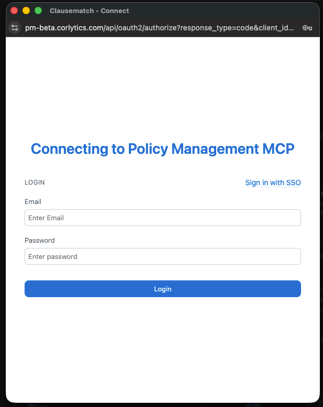
- If already logged in, this won't be needed.
- Review the requested scopes and grant only those that you need.
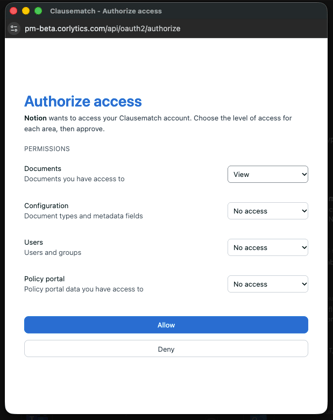
Once successfully connected, you'll be able to provide instructions to your AI assistant, and if it's permitted to do so, it will perform what it can using your Clausematch user.
When searching for information, you can check the source paragraph mentioned in the assistant's result to verify the answer if needed.
Supplementary Information
What the Connection Supports
Depending on permissions and scopes, an assistant can:
- Search documents and provide citations and links to source paragraphs.
- Read document content and metadata, including Connection Picker values.
- Create metadata fields and screens, document types, templates and workflow stages, and release templates through a guided configuration flow.
- Create documents from templates, update paragraphs and metadata, and move documents through workflow stages.
- Manage document permissions, categories, tags, users and groups.
- Apply metadata and connection updates across several documents.
The live catalogue determines which tools (assistant permissions) are available. The catalogue currently contains 55 tools, but coverage, names and descriptions can change.
Avoid hardcoding tool names in scripts or agent definitions.
Scope Areas
| Area | Scopes | Coverage |
| Documents | documents:read, documents:write |
Search, content, metadata, workflow stages, permissions and data connections on accessible documents |
| Configuration | configuration:read, configuration:write |
Document types, metadata fields and screens, and categories |
| Users | users:read, users:write |
Users and groups |
| Policy Portal | portal:read |
Published documents within your Portal audience |
documents:read is preselected; write access is opt-in. Write includes read in the same area, but permissions do not cross areas. Configuration and user tools additionally require administrative authority. Consent alone cannot supply that authority.
Portal-only Access
A person whose only authority is portal_user receives exactly two tools: Portal search and its filter-list companion. Management and configuration tools are hidden and refused if called. Portal search uses latest published versions within the caller's audience; drafts and inaccessible documents are excluded. The same reader-level scoping applies to Portal managers, publishers and superadministrators through this endpoint.
Built-in Policy Portal AI Chat is a separate capability; connecting an external assistant does not enable it.
Writes and Confirmation
Assistants are instructed to describe each proposed change and obtain your approval, separately for each write. This instruction is not an enforced platform gate for every action.
Deleting a metadata field is the only operation with a confirmation gate enforced in code. The assistant first receives an impact assessment and must repeat the request with an explicit acknowledgement. That assessment is partial: chart usage, custom-report usage and document values cannot all be checked through the available read endpoints. Existing platform restrictions, such as chart use or another user's lock, are returned as readable explanations.
Other destructive actions—including deleting metadata screens or stage prototypes, replacing document types, archiving data-connection links and disabling users in bulk—are identified as destructive but do not have equivalent enforced gates. Documents are archived and users disabled rather than hard-deleted. Metadata screens and stage prototypes can be permanently deleted.
Supplementary Information
Audit and Data Handling
Every MCP tool call is recorded in the User Activity log with the acting user, connected client, tool, sanitised arguments, result summary, duration and outcome. Large or sensitive payloads, such as document content or user records, are logged as present rather than reproduced. Document changes also appear in the document's activity under your name.
Content is shared with the external assistant your organisation connects, within your permissions. Its subsequent handling is governed by your agreement with that provider. Corlytics does not use client data to train AI models; this does not replace your provider's terms.
Notes
Cached Tools
-
An MCP client may continue displaying cached tools (granted permissions) until fully restarted.
-
So if your Clausematch user has had their AI assistant permissions changed, then until a full restart of the assistant or signing out and connecting again is needed for its tool list to be updated.
- Note that this lag only affects what is displayed on your assistant's tool list, it doesn't affect how quickly AI permission changes are made - they're made instantly.
- This is an open issue across MCP hosts, not something specific to the Clausematch platform.
-
For example: Cursor's reload control does not pick up changes and Cursor staff are tracking the regression with no fixed date. Claude Code, GitHub Copilot in VS Code, and OpenAI Codex all have open reports of ignoring the standard
notifications/tools/list_changedsignal, so a stale list can survive until the client is restarted.
References: Cursor forum thread, Claude Code issue.
-
-
API Integrations vs MCP Connections
- MCP governance applies to individual assistant connections, not to existing service-account API integrations.
AI Answers Care
- AI answers can be incomplete or imprecise. Verify them against the cited document.