
Introduction
This quarter release contains the following:
- 🧿 New Capabilities
- 1. Metadata Automation
- 1.1 Automate Actions when Document Metadata Changes
- 1.2 Calculate Date Metadata Value
- 1.3 New Action: Update Metadata
- 2. Workflow Automation
- 2.1 Move documents to the right stage automatically
- 2.2 New Workflow Trigger: Approval Change
- 2.3 Workflow Stage Change Trigger: New Options
- 3. Other
- 3.1 [Automation] Conditions Block for Automation Rules
- 3.2 [Automation] Document Activity - Automation Events
- 3.3 [Automation] See All Automation Steps in the Automation Run Log
- 3.4 [Configuration] Configuration to Hide Categories
- 3.5 [Metadata] Use Advanced Tables inside Metadata Fields
- 3.6 [Workflow] Stage Duration and Deadline Configuration
- 3.7 [Workflow] Stage Modals UI Improvements
- 1. Metadata Automation
- Bug fixes & improvements
- Policy Management
- Changes in Patches for 2026.1
For any questions, please email support@corlytics.com and we will further assist you.
Please review all changes that have these labels and the related CONSIDER sections:
‼️ - Important to review
🔥 - Changes in behaviour
________________________________________________________________________________________
⛳ Summary
The release focuses heavily on Automation for Workflows and Metadata management, aiming to reduce manual work and improve data quality across the platform.
Key changes will include new automation capabilities that help update metadata and transition documents to any stage once requirements are met.
The Beta capabilities from the previous release will be enhanced based on client feedback to move toward production readiness. Shape these capabilities:
 Survey: Metadata inside content [Beta Enhancement]
2026.1: Deprecation / Critical Changes
Workflow
-
🔥 New deadline calculation for stages: All future deadlines previously set for workflow stages will be removed. Instead of specific due dates for future stages, users will see duration information configured at the template level.
Deadlines for each stage will only be set when a document enters that stage.
Automation
-
Control Who Triggers Automations. Plus Loops prevention logic
- You can now define exactly whose actions are allowed to trigger metadata-based automation rules: user-initiated changes, automation-initiated changes, or both.
By default, only user actions trigger automation rules, which helps prevent noisy or looping automations while still allowing more advanced setups when you explicitly enable automation-driven triggers. - Use Cases:
- Keep approval or notification flows reliable by allowing only human‑initiated metadata updates to trigger automations, so downstream actions always reflect intentional user changes.
- Build chained workflows where one automation updates metadata and another rule reacts to that change, by enabling both user and automation initiators when you need fully automated flows.
- Reduce unintended loops and duplicated executions by leaving the default “user only” setting in place for simpler policies, and enabling automation triggers only for carefully designed scenarios
- You can now define exactly whose actions are allowed to trigger metadata-based automation rules: user-initiated changes, automation-initiated changes, or both.
-
- To Consider:
- 1. By default, only user‑initiated changes fire the rule; you need to explicitly enable automation‑initiated changes if you want automations to trigger other automations.
- 2. 🔥 Aggregation logic prevents your rules from running multiple times when several metadata changes happen close together. Instead of triggering a new run for every single update, the system groups changes for a short window (for example, 10 seconds) and then executes the rule once using the latest state of the metadata.
For example, multiple quick updates to the same metadata by a user (for example, changing the owner field several times in a row while deciding who to assign) may result in only a single automation run instead of one per change.
- 3. 🔥 Loop protection logic ensures that when one automation updates metadata watched by another automation, that reaction will run only once, even if the second automation would normally trigger the first one again.
For example, if Automation A updates a field that triggers Automation B, and Automation B then updates a field that could trigger Automation A, the system will allow this chain to run a single time and then stop further triggers, so you do not end up with A → B → A → B loops.
- To Consider:
Other
- Legacy modules: The Exceptions and Compliance Assessments modules were removed.
2026.1: IMPORTANT changes in User Interface, Text, etc...
Workflow
Changes in Wording:
-
Template Settings: "Set Stage" -> "Set Workflow"
- Document Settings: “Stages” → “Workflow”
- Top bar menu: “Change Stage” → “Next Stage”
- Stage Modal:
- “Set Workflow” → Removed
White-Labelling
Brand colors available in all color pickers:
You can now apply your organization's brand colors consistently across the platform in all areas where color selection is available.
Brand colors are now available in the editor (text and background colors, including text styles and table colors), document type, automation actions (like emails) and various admin panel configurations.
🧿 New Capabilities
1. Metadata Automation
Metadata automation now lets teams automatically set, reset, and calculate key fields so documents stay accurate without manual updates.
By reacting to events like stage changes, new versions, or other field changes, it ensures metadata is always current, consistent, and aligned with review cycles.
This includes automatically calculating dates such as Next Review Date = Release Date + X, resetting version-specific fields like What’s New, and auto-populating related fields to remove duplicate data entry and reduce human error.
Default metadata values can also be applied when creating documents from templates, so teams manage metadata via configuration and automation rather than one-off edits.
1.1 Automate actions when document metadata changes
- Label: ‼️ Important to Review
- Where: Policy Management
- Roles: Manager / Document Owner
- Product Areas: Automation, Metadata
- Summary: You can now use a new automation trigger that runs whenever metadata on a document is updated. This means you no longer need to manually check for changes in key fields like owner, status, or business unit to keep your workflows up to date.
With this trigger, you choose which metadata fields you want to watch, and the system will automatically run your rule when those fields change.
You can also decide whether to react only to changes made by users, helping you avoid unnecessary loops from automations triggering each other.
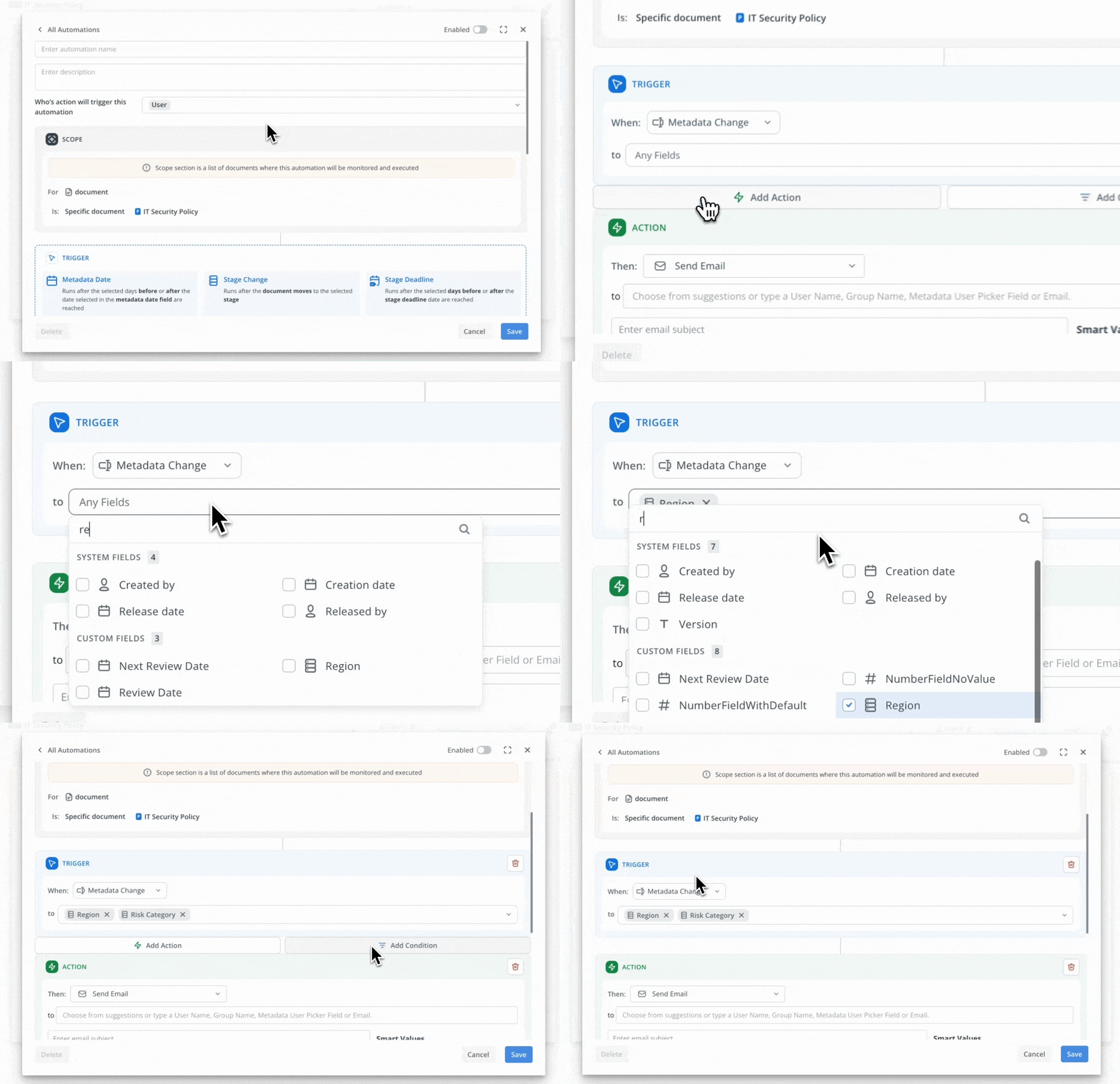
Notes
- Use cases:
- 1. Notify users automatically when key metadata changes, so they can respond without regularly checking records.
- 2. Create or update follow‑up tasks when specific fields change (for example, routing documents to a new reviewer when ownership or business unit is updated).
- 3. Keep downstream processes stable by allowing rules to react only to user‑initiated changes, reducing the risk of noisy or looping automations.
- 4. Use broad “any custom fields change” monitoring where needed, or narrow rules down to a small set of critical fields for more targeted workflows.
- To Consider:
1. 🔥 If you do not select specific fields, the rule will listen to changes in any custom metadata field, which may lead to more frequent automation runs than expected.- 2. By default, only user‑initiated changes fire the rule; you need to explicitly enable automation‑initiated changes if you want automations to trigger other automations.
- 3. 🔥 Aggregation logic prevents your rules from running multiple times when several metadata changes happen close together. Instead of triggering a new run for every single update, the system groups changes for a short window (for example, 10 seconds) and then executes the rule once using the latest state of the metadata.
For example, multiple quick updates to the same metadata by a user (for example, changing the owner field several times in a row while deciding who to assign) may result in only a single automation run instead of one per change. - 4. 🔥 Loop protection logic ensures that when one automation updates metadata watched by another automation, that reaction will run only once, even if the second automation would normally trigger the first one again.
For example, if Automation A updates a field that triggers Automation B, and Automation B then updates a field that could trigger Automation A, the system will allow this chain to run a single time and then stop further triggers, so you do not end up with A → B → A → B loops.
1.2 Calculate Date Metadata value
- Label: ‼️ Important to Review
- Where: Policy Management
- Roles: Manager / Document Owner
- Product Areas: Automation, Metadata
- Summary: You can now streamline your document workflow by auto-populating date fields based on calculated values.
This enhancement means reduced manual date handling and improved accuracy and consistency for time-driven actions like reviews, expirations, and reminders.
Example: When you move a document to the release stage, the system can automatically set a "Next Review Date" to today plus one year, minimizing the effort and potential for error in date management.
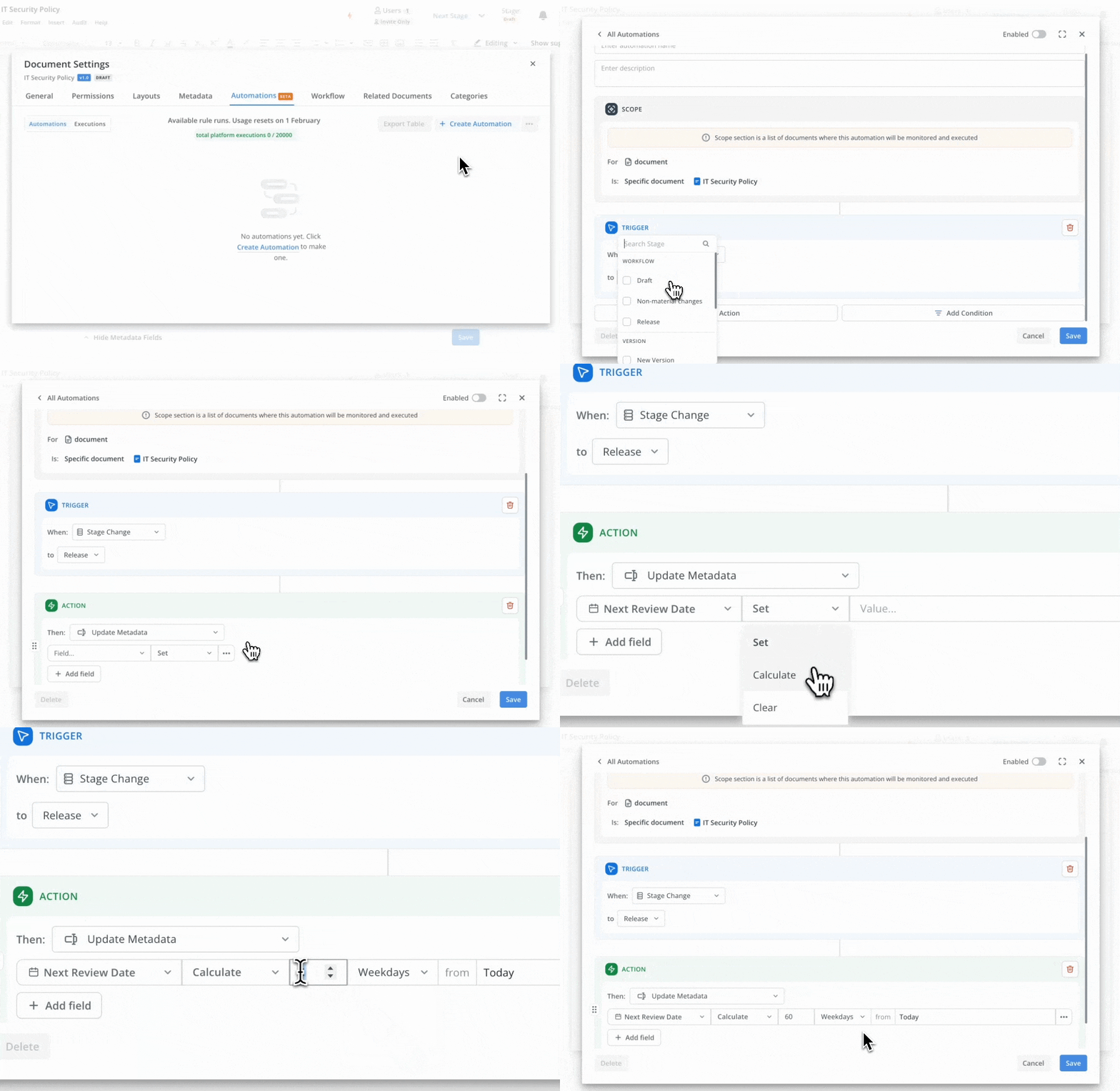
Notes
- Use cases:
- 1. Next Review Scheduling: Automatically set the “Next Review Date” to 10 days or 10 weekdays from today when a document is released.
- 2. Expiry Planning: Predefine document expiry dates to occur a set time after key workflow stages.
- To Consider:
- 1. Dates can be set based on a fixed number of days or weekdays added to the current date (“Today”). Only “Today” is available as a reference point at this stage.
- 2. Manual adjustments are not prevented - users can still overwrite these fields if permitted by metadata screen configuration.
- 3. Example with different options:
10 Days from Today (12.11.2025) = 22 November 2025 (Saturday)
10 Weekdays from Today (12.11.2025) = 26 November 2025 (Wednesday)
————————————————————————————————
Future enhancements may expand the choice of reference fields (allowing selection from other date or number metadata fields)
1.3 New Action: Update Metadata
- Label: ‼️ Important to Review
- Where: Policy Management
- Roles: Manager / Document Owner
- Product Areas: Automation, Metadata
- Summary: With the new automation capability, you can configure rules to automatically update or clear metadata fields across your documents when specific business triggers are met. This reduces the need for manual updates, minimizes the risk of errors, and allows you to streamline processes such as updating review dates, ownership, regions, or custom fields.
You can set up automation rules to perform multiple operations—such as set, add, remove, or clear values—across various fields in a single action. If a step in your automation fails, any subsequent actions in that rule will be skipped, helping you maintain data accuracy. Note:
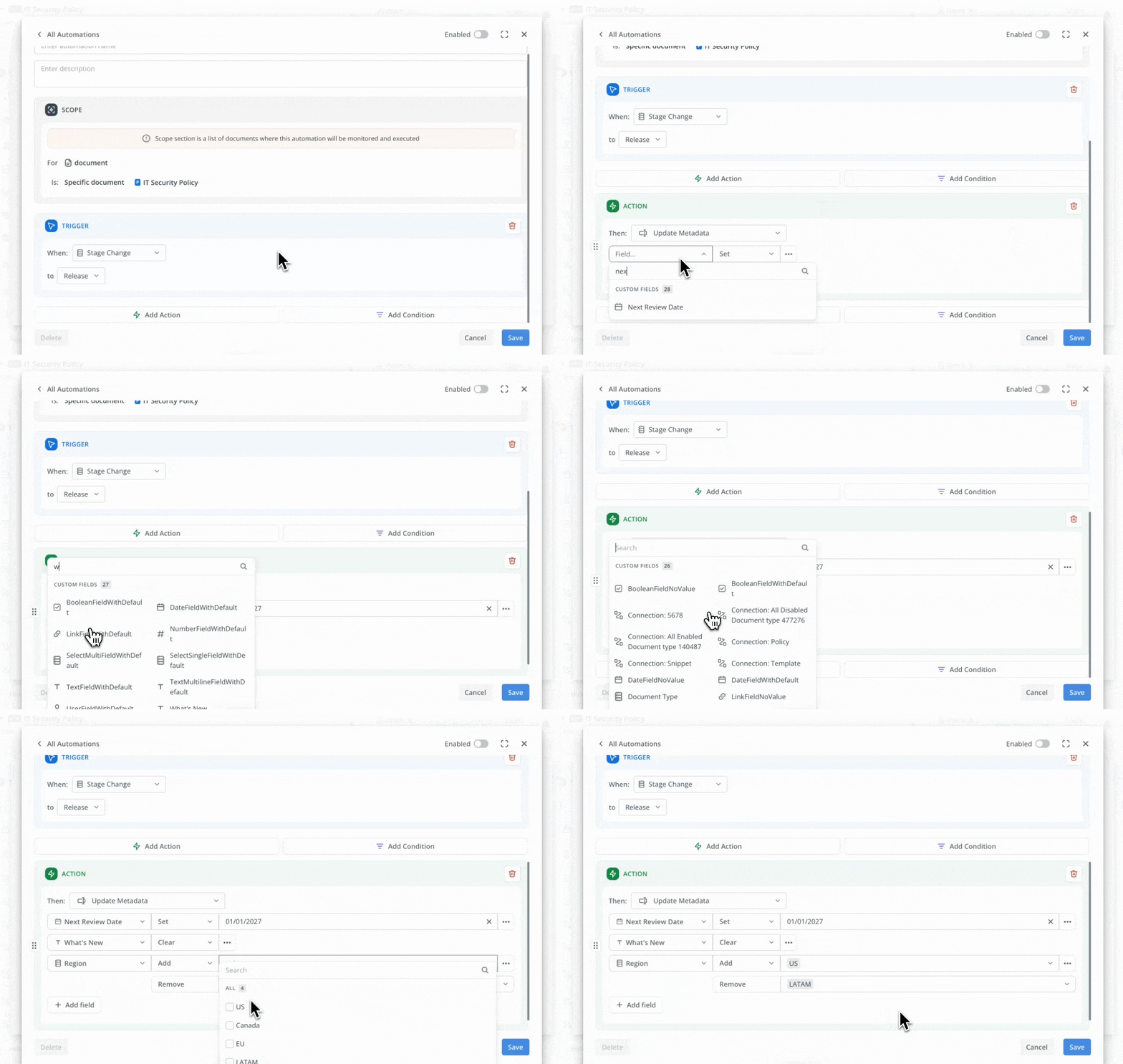
Notes
- Use cases:
- 1. Automatically set “Next Review Date” to one year from now when a document is released.
- 2. Reset “What’s New” and “Major Changes” fields when a new version is created.
- 3. Bulk clear obsolete metadata fields when documents are archived.
- To Consider:
- 1. 🔥 Multiple automation rules within document can touch the same metadata field, and there is no way to ensure the order. When executing these automations, they may lead to different results as the order of execution changes. Careful design is recommended if several automations could target the same field.
- 2. 🔥 Automation can update or clear any editable metadata field, even if the field is set as required or read-only on the metadata screen.
Automations cannot update system locked metadata fields like (released date, publication date, etc) - 3. If automation contains multiple actions (like 1 send email, 2 update metadata, 3 send email) and a step fails, any subsequent steps (actions) in that rule will be skipped, helping you maintain data accuracy
2. Workflow Automation
Workflow automation gives you richer triggers, stage-move actions, and conditional logic so your documents move through the right steps without manual work. It reacts to changes in approvals and checks metadata or approval status before doing anything, making your workflows more reliable and rule-driven.
You can set up auto-progress rules that move a document forward as soon as all required actions in the current stage are done, helping you avoid stalls and extra clicks. You can also configure auto-revert rules so that if an approval is rejected or another failure condition is met, the document automatically moves back to an earlier stage, keeping its status accurate and speeding up rework.
2.1 Move documents to the right stage automatically
- Labels: 🔥 Changes in Behaviour
- Where: Policy Management
- Roles: Manager / Document Owner
- Product Areas: Workflow / Automation
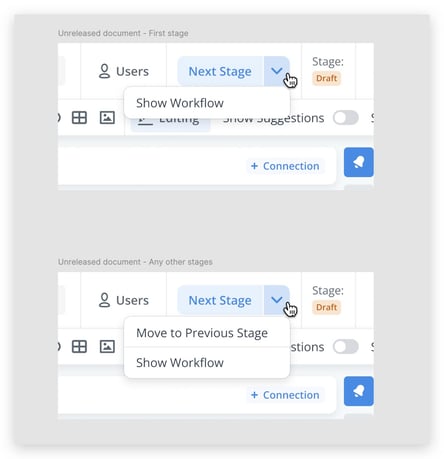
- Summary: You can now use automation rules to move documents to a specific stage, as well as quickly jump to the next or previous stage using new navigation buttons.
This reduces manual stage updates, helps prevent mistakes, and ensures stakeholders always see the correct document status, with clear notifications showing who or which automation performed the change and when
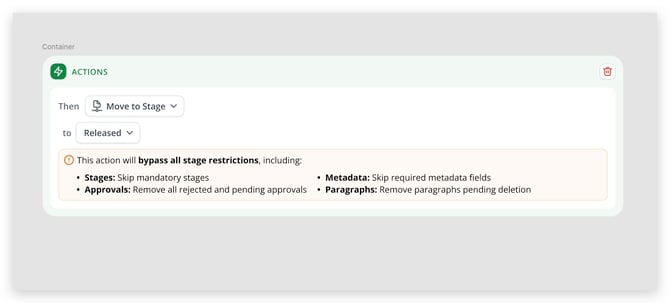
Notes
- Use cases:
- 1. Auto-progress documents: Automatically move a document to the next stage when all approvals are completed, so workflows continue without manual updates.
- 2. Target specific stages: Route documents directly to a chosen stage (for example, Legal Review or Final Approval) when certain conditions are met, reducing coordination overhead.
- 3. Quick stage navigation: Use
Next/Previous stage buttonsto move documents forward or back in the workflow while respecting boundaries like first draft and release.
- 4. Transparent status tracking: Notify stakeholders whenever a stage changes, including who or which automation performed the action and when.
- To Consider:
- 1. 🔥Automations cannot move a document beyond the last stage in the workflow or before the first stage, so “Next” and “Previous” are only available where a stage exists.
- 2. 🔥 Using “Move to stage” will bypass the usual guardrails applied when changing stages manually. It will allow documents to skip mandatory stages, ignore required metadata fields, clear all rejected and pending approvals, and remove any paragraphs that are still pending.
2.2 New Workflow Trigger: Approval change
- Labels: ‼️ Important to Review
- Where: Policy Management
- Roles: Manager / Document Owner
- Product Areas: Workflow / Automation
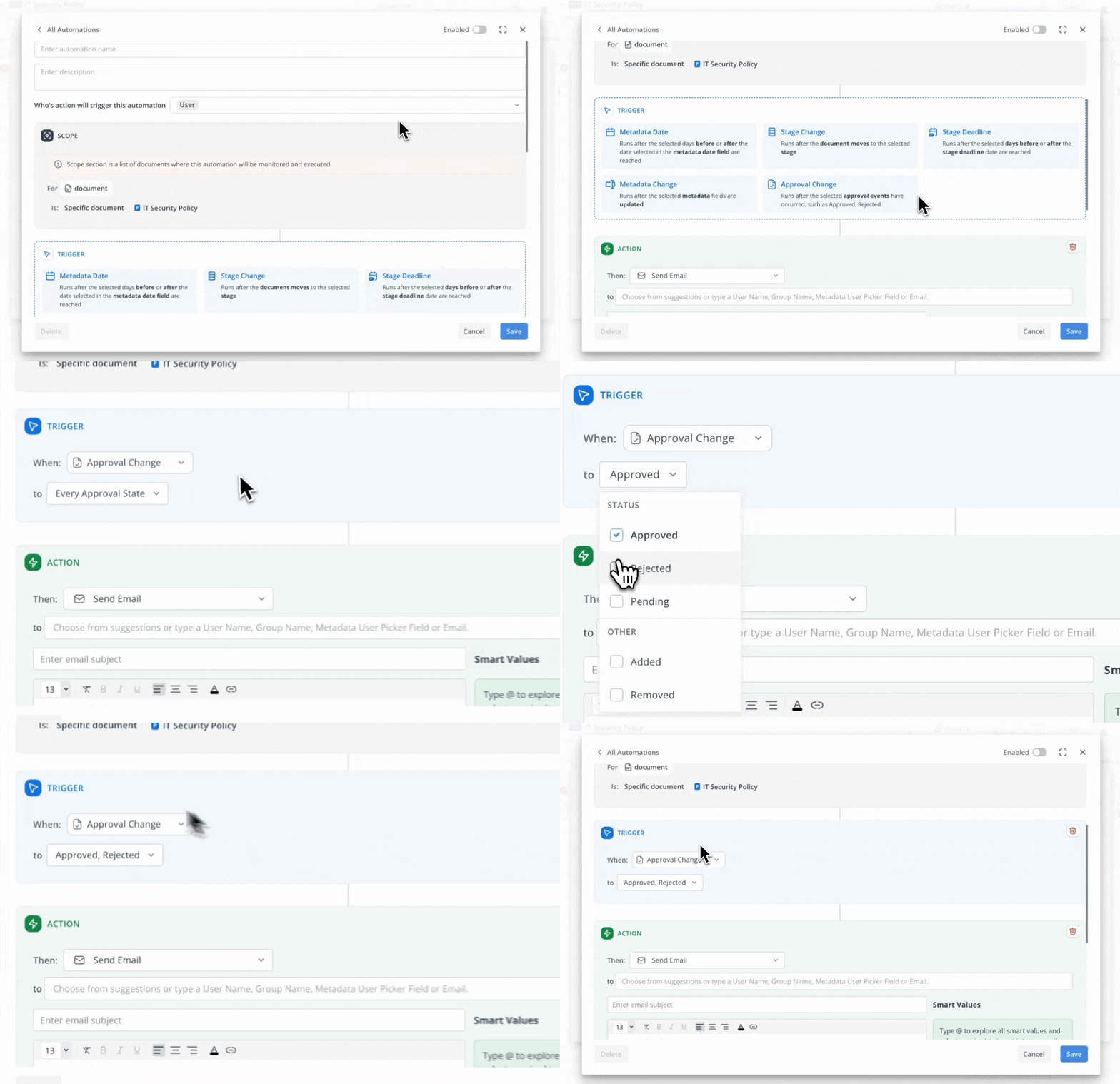
- Summary: This update introduces a new automation trigger for “Approval Change”.
Users can now configure automation rules to react to key approval status changes, such as when approvals are added, approved, rejected, pending, or removed.
Each type of approval event can automatically trigger defined actions, such as notifications, stage change or metadata updated, tailored to your workflow needs.
This enhancement streamlines document approval tracking by reducing manual interventions and enables users to support more complex, customizable approval processes across documents.
Notes
- Use cases:
- 1. Trigger workflow steps, such as moving a document to the next stage, when all approvals are granted.
- 2. Instantly send summary updates to stakeholders when all required approvals are completed on a document.
- 3. Automatically notify key team members whenever an approval status changes on critical documents.
- To Consider:
- 1. 🔥 The trigger operates at the document level and emits individual events for each approval change.
If multiple approvals are present (e.g., 10 approvals on a document), each change (added, approved, rejected, removed) will activate the automation separately, potentially resulting in numerous actions. - 2. 🔥 In case when new approver was added, only Added events will be triggered, pending status will be ignored in this case
—-—-—-—-—-—-—-—-—-—-—-—-—-—-—-—-—-—-—-—-—-—-—-
Future updates are planned to expose more detailed event data (who changed, when, which approval), which may improve how actions and notifications are handled.
- 1. 🔥 The trigger operates at the document level and emits individual events for each approval change.
2.3 Workflow Stage Change Trigger: New Options
- Labels: ‼️ Important to Review
- Where: Policy Management
- Roles: Manager / Document Owner
- Product Areas: Workflow / Automation
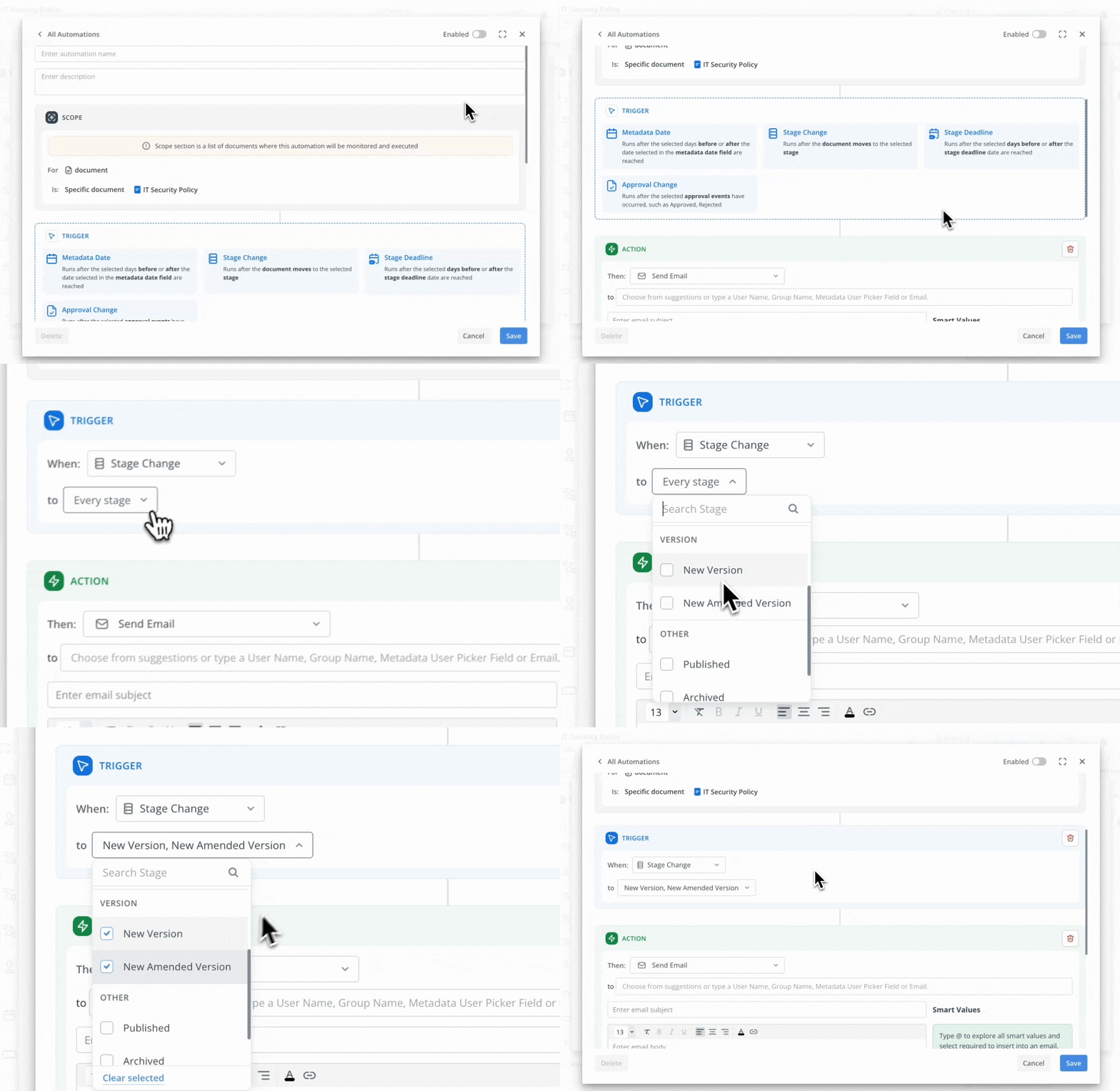
- Summary: The “Stage Change” trigger now includes two new system events: “New Version” and “New Amended Version.”
This update allows users to automate actions when a new document version or a non-material change (NMC) version is created.
With these expanded automation triggers, it’s easier to ensure consistent application of metadata and notifications, while reducing manual work after versioning. Trigger options in the automation setup are now grouped more clearly for easier configuration.
Notes
- Use cases:
- 1. Automate team notifications when a new document version or NMC version is created, helping stakeholders stay up to date with the latest policy changes.
- 2. Automatically reset or update document metadata during versioning, minimizing risk of overlooked compliance data and ensuring accuracy with less manual effort.
- 3. Configure custom workflow rules so that routine post-versioning actions, such as updating field values or sending alerts, run without manual intervention whenever a document advances to a new version or amended state.
- To Consider:
- 1. The “New Version” event does not trigger for routine transitions like moving a document back to Draft, it only applies to actual creation of new versions.
3. Other
These changes give you clearer, more predictable automation that feels under your control rather than “magic in the background”. You can see exactly when rules will run, which updates were made by automation, and review every step in an audit log, making it easier for you to trust and troubleshoot automated flows.
You also get a cleaner UI, richer tables inside metadata, and more flexible workflow deadlines, so your everyday work is more intuitive: less clutter on screen, better-structured information, and timelines that match how your documents actually move through the process.
3.1 [Automation] Conditions Block for Automation Rules
- Labels: ‼️ Important to Review
- Where: Policy Management
- Roles: Manager / Document Owner
- Product Areas: Automation
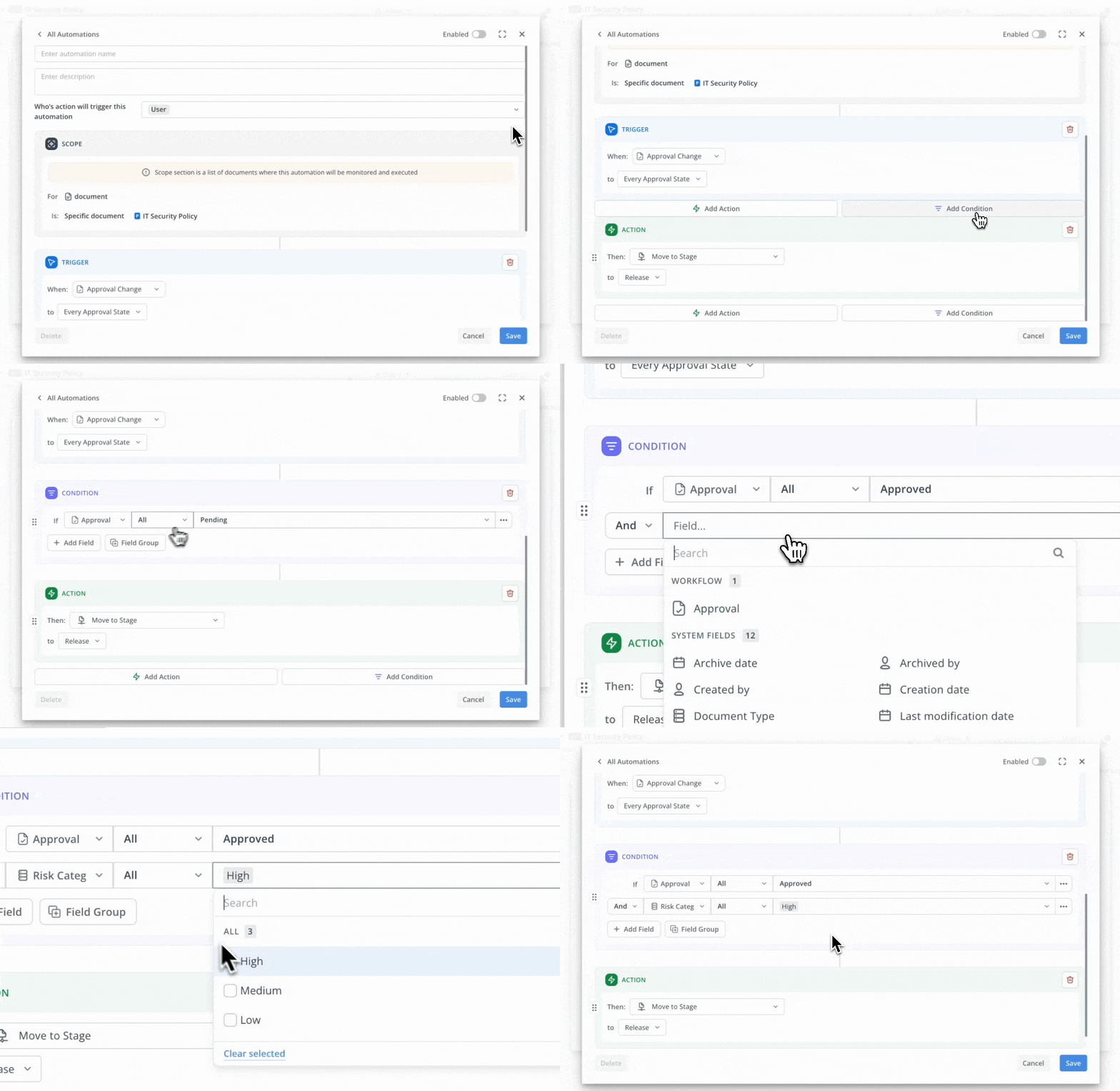
- Summary: You can now control exactly when your automation rules run by adding condition blocks that evaluate document metadata and approval status before any actions are executed.
Each condition uses a simple Field–Operator–Value pattern with configurable AND/OR logic, so rules only proceed when the defined criteria are met, reducing unnecessary triggers and improving workflow reliability.
Conditions act as an execution gate in the automation: if a condition block evaluates to false, all subsequent steps in that rule are skipped, helping teams avoid unwanted updates or notifications.
Notes
- Use cases:
- 1. Automatically move documents forward or trigger follow-up actions only when specific approval thresholds are reached (for example, when more than one approver has marked the document as Approved).
- 2. Route documents differently based on metadata, such as product, region, or department, by configuring conditions that check metadata field values before running an action.
- 3. Combine approval and metadata conditions using AND/OR logic to create precise rules, such as running an action only when a document is Approved and tagged with a specific risk category.
- 4. Use multiple condition blocks within the same rule to introduce checkpoints across the automation flow, controlling which later steps should run based on how conditions are met at different stages.
- To Consider:
- 1. 🔥 Condition blocks act as gates: any actions or later condition blocks placed after a block will only run if that block evaluates to true.
- 2. You can place multiple condition blocks anywhere after the trigger and reuse the same metadata or approval fields more than once within a rule
3.2 [Automation] Document Activity - Automation events
- Labels: 🔥 Changes in Behaviour
- Where: Policy Management
- Roles: Manager / Document Owner
- Product Areas: Automation
- Summary: You can now see which document changes were triggered by automation directly in the Document Activity log, making it easier to separate automated updates from manual actions.
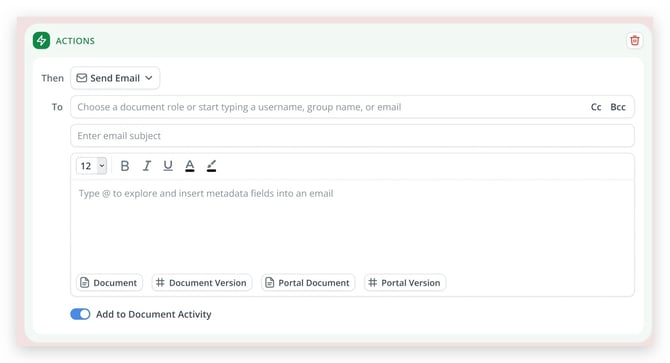
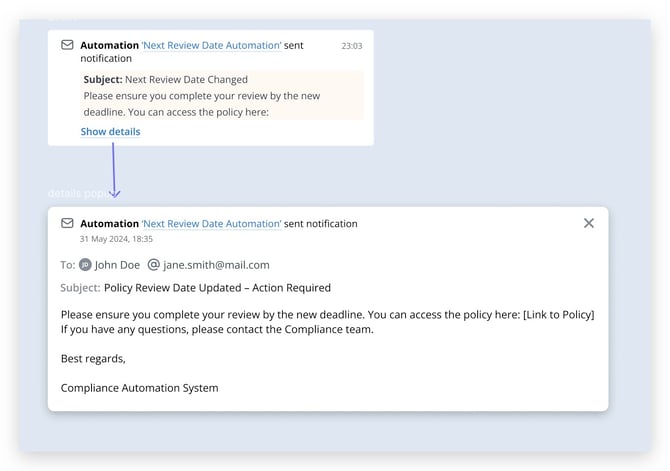
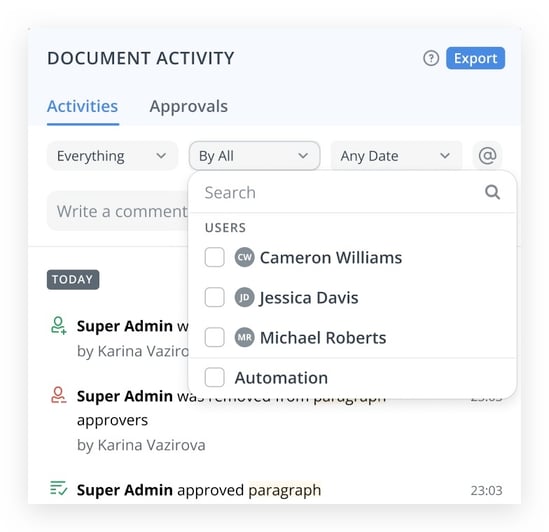
This includes metadata changes, stage changes and email notifications generated by automation, which are clearly labelled and can be filtered so you focus only on automation-driven events when needed.
You can also configure whether specific automation email actions appear in the activity, helping surface meaningful communications while hiding low‑value system emails that would otherwise clutter the history.
View Document Activity Timeline
Notes
- Use cases:
- 1. Notification checks: Review which automated emails were sent from a document, including subject and recipients, to support compliance checks.
- 2. Metadata change trace: Quickly confirm which metadata fields were updated by automation, and when, during an audit or investigation
- 3. Automation Stage Tracking: See when a document was moved to a new stage by automation, helping you understand how it progressed through the workflow without manual checks.
- 4. Noise Reduction: Hide low‑value automation email events from the activity timeline so you can focus on the critical updates and notifications that matter for audits and reviews.
- 5. Filter the Document Activity log by the new Automation “user” to review only automation-related updates
- 6. Export automation-related events (including before/after metadata values and notification details) for compliance checks or external reporting
- 7. Deep-dive into runs: Jump from an automation event in the activity log to the Automation Audit log or execution run to understand exactly what happened.
- To Consider:
- 1. 🔥 Only events triggered by automation are included, and only when the action was successful or partially successful (for example, emails sent to some but not all recipients)
- 2. Details for email events show the final resolved recipients and content, but do not expose groups or smart values as configured in the automation rule
- 3. What you can open from an automation event depends on your permissions: Users with Manage Automation authority can drill into automation logs, Document owners can view information about runs, while other users see read-only information
3.3 [Automation] See All Automation Steps in the Automation Run Log
- Labels: ‼️ Important to Review
- Where: Policy Management
- Roles: Manager
- Product Areas: Automation
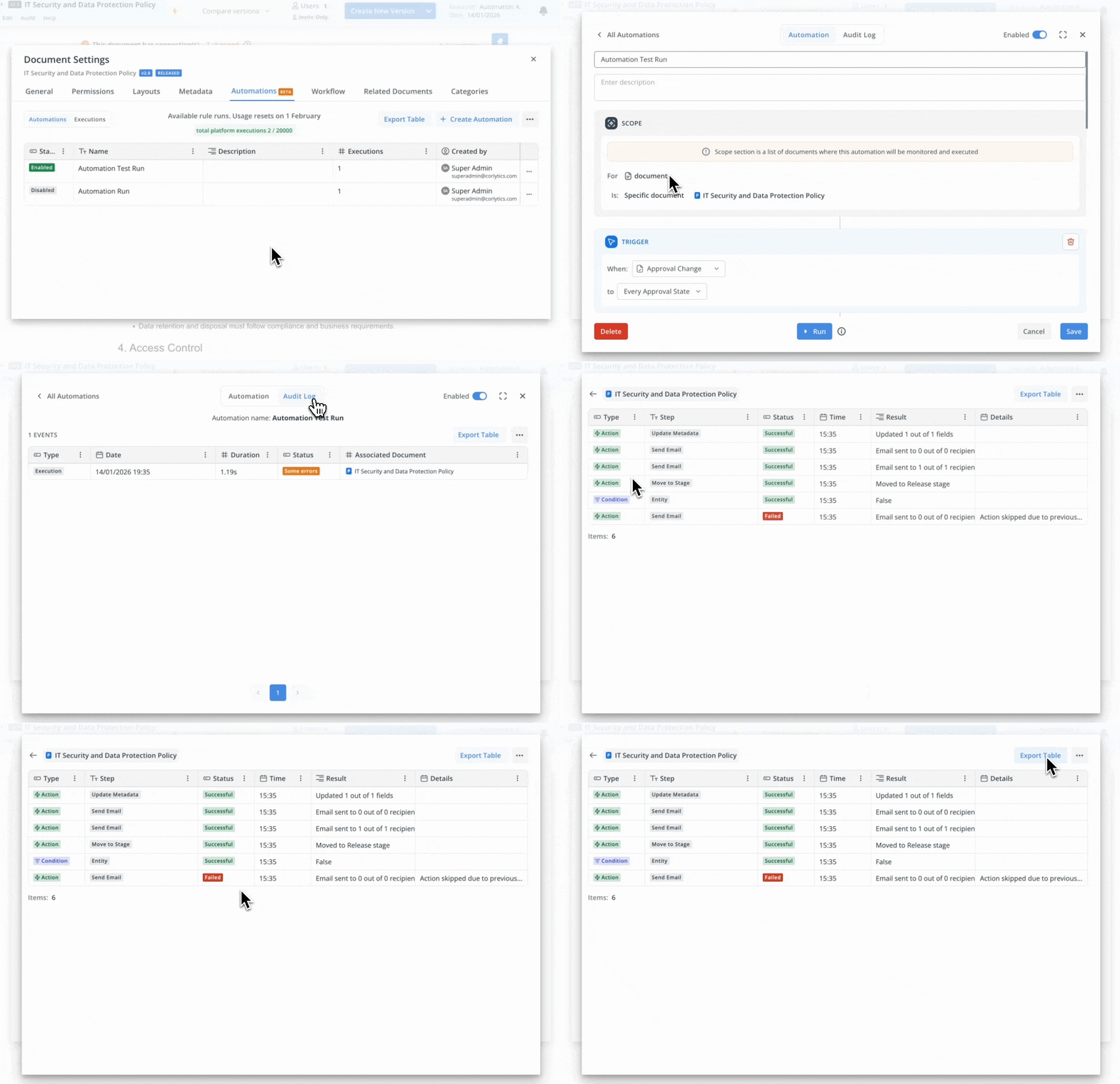
- Summary: You can now review a structured audit log for each automation run, showing every action in the exact order it was executed, including stage changes, metadata updates, and condition checks.
Each row clearly indicates the type of step (Action, Condition, Stage Change, Metadata Update) and a human-readable step name, helping quickly understand what happened.
For key actions, the log highlights destination stages, condition results (true/false), and a summary of attempted vs successful metadata field updates, and can be exported for further analysis or sharing.
Notes
- Use cases:
- 1. Automation Run Review: See each step executed in order, including stage changes, metadata updates, and condition checks, so you can quickly confirm whether the rule behaved as intended.
- 2. Issue Investigation: When a document ends up in an unexpected stage or with incorrect metadata, review the related automation run log to pinpoint which action or condition caused the outcome and adjust the rule configuration accordingly.
- 3. Audit Evidence: Export the detailed automation log for a key document or workflow as supporting evidence for internal audits, regulatory reviews, or incident analysis, showing exactly which rules ran and what they changed.
- 4. Support Troubleshooting: teams can use the automation audit log to reproduce and understand issues without external help, reducing time to resolution.
3.4 [Configuration] Configuration to hide categories
- Labels: Beta
- Where: Policy Management / Policy Portal / Admin Panel
- Roles: Manager
- Product Areas: Metadata / Configuration and Settings
- Summary: You now have the option to hide our legacy capabilities: Categories across the platform, making your user interface cleaner and more focused.
This new setting applies to all modules, so you won't see categories in document lists, columns, search results, and more.
It's like the categories never existed, giving you a streamlined experience.
Note: This enhancement is part of our transition to a metadata engine, introducing hierarchical metadata fields, which organizes your information more intuitively.
Configure Common Functionality for your Users
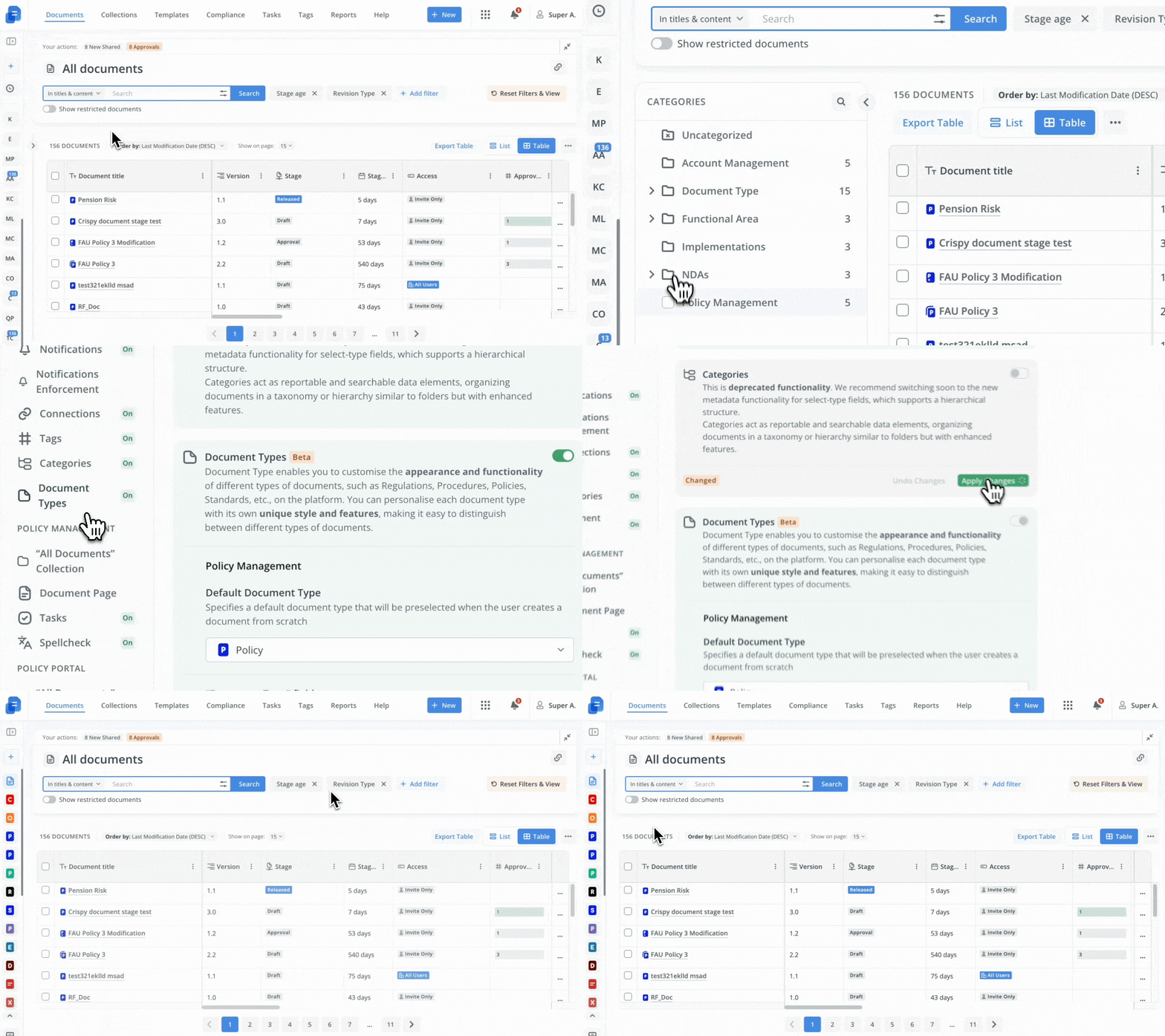
Notes
- Use cases:
- 1. Transition to a Metadata engine - Hierarchical Select fields
- To Consider:
- 1. 🔥 As part of Beta Phase will be introduced only on beta and UAT environments.
- 2. Enabling this configuration removes all category visibility across the platform’s common section and impacts all modules. Categories will be fully hidden from document lists, columns, sidebar, search results, creation workflows, move-to-stage flows, and document/template settings.
- 3. Data integrity remains intact. Even when categories are hidden, all underlying category data is preserved and no data loss occurs. The operation is reversible; showing categories again restores full access to previously assigned categories.
- 4. 🔥 Search results will no longer display category fields when this is enabled. Hiding categories does not affect existing settings or filters, which remain active.
- 5. Existing documents with previously assigned categories are not reclassified or deleted when categories are hidden.
3.5 [Metadata] Use advanced tables inside metadata fields
- Labels: ‼️ Important to Review
- Where: Policy Management
- Roles: Manager / Document Owner
- Product Areas: Editor / Metadata
- Summary: You can now enhance your data entry experience by using advanced tables within multiline metadata fields.
This feature allows you to have more flexibility with your data organization through capabilities like adding and deleting columns and rows, merging cells, resizing columns, and reordering columns and rows.
Plus, you have the freedom to format your tables with text and background color, making your entries both structured and visually appealing. You can customize your metadata fields exactly as you need.
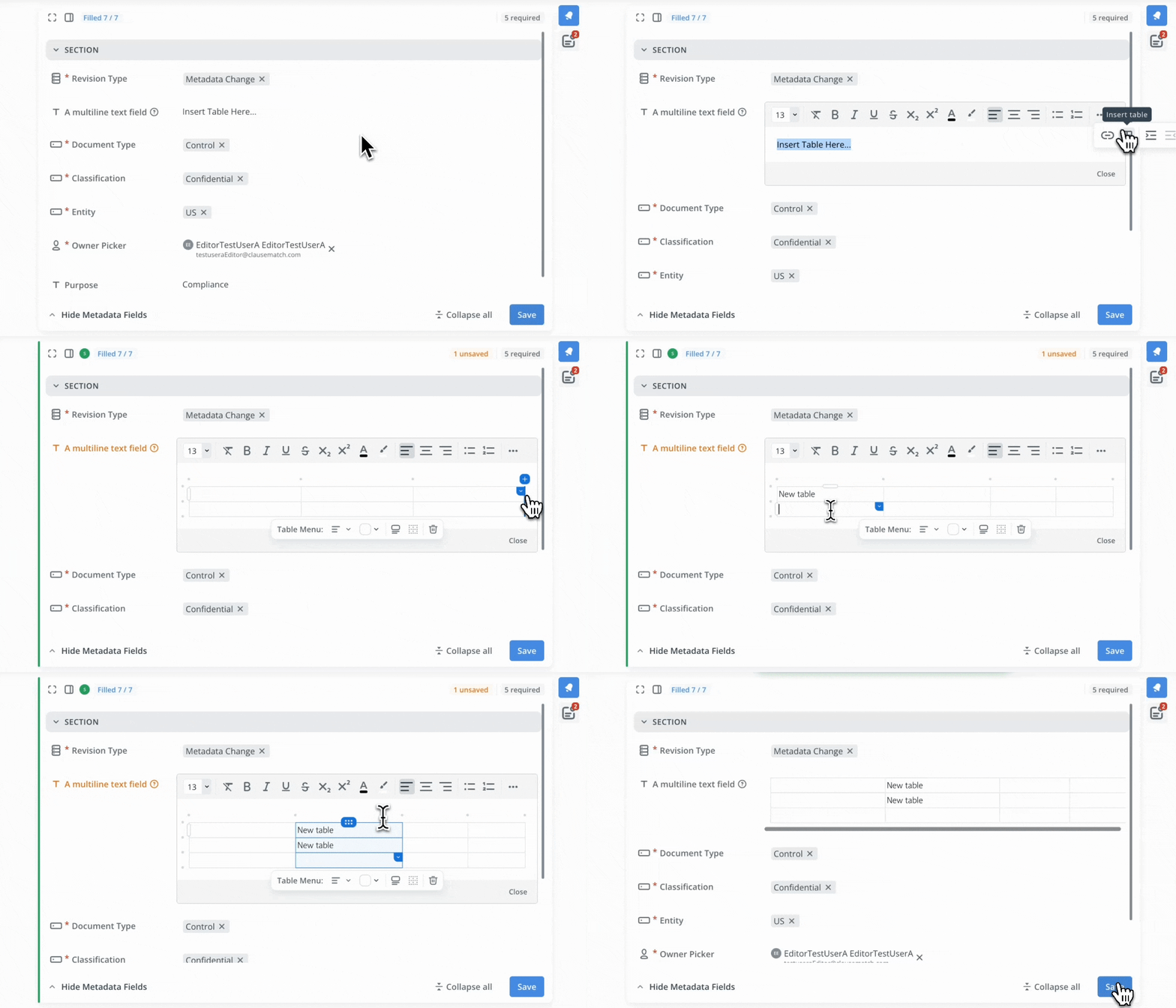
Notes
- Use cases:
- 1. Easily organize complex, multiline metadata with advanced table configurations.
- 2. Format metadata tables to align with organizational needs using text and background styling options.
- 3. Gain control over the layout and presentation of metadata for improved clarity and precision.
3.6 [Workflow] Stage Duration and Deadline configuration
- Labels: 🔥 Changes in Behaviour
- Where: Policy Management
- Roles: Manager / Document Owner
- Product Areas: Workflow
- Summary: This update introduces enhanced control and flexibility for managing deadlines within workflow stages.
Users can now enable or disable deadlines for any stage, choose durations via templates, and dynamically calculate deadlines as documents move through different stages rather than applying all deadlines at document creation.
Authorized roles have the ability to adjust deadlines at the document level, supporting better oversight and compliance.
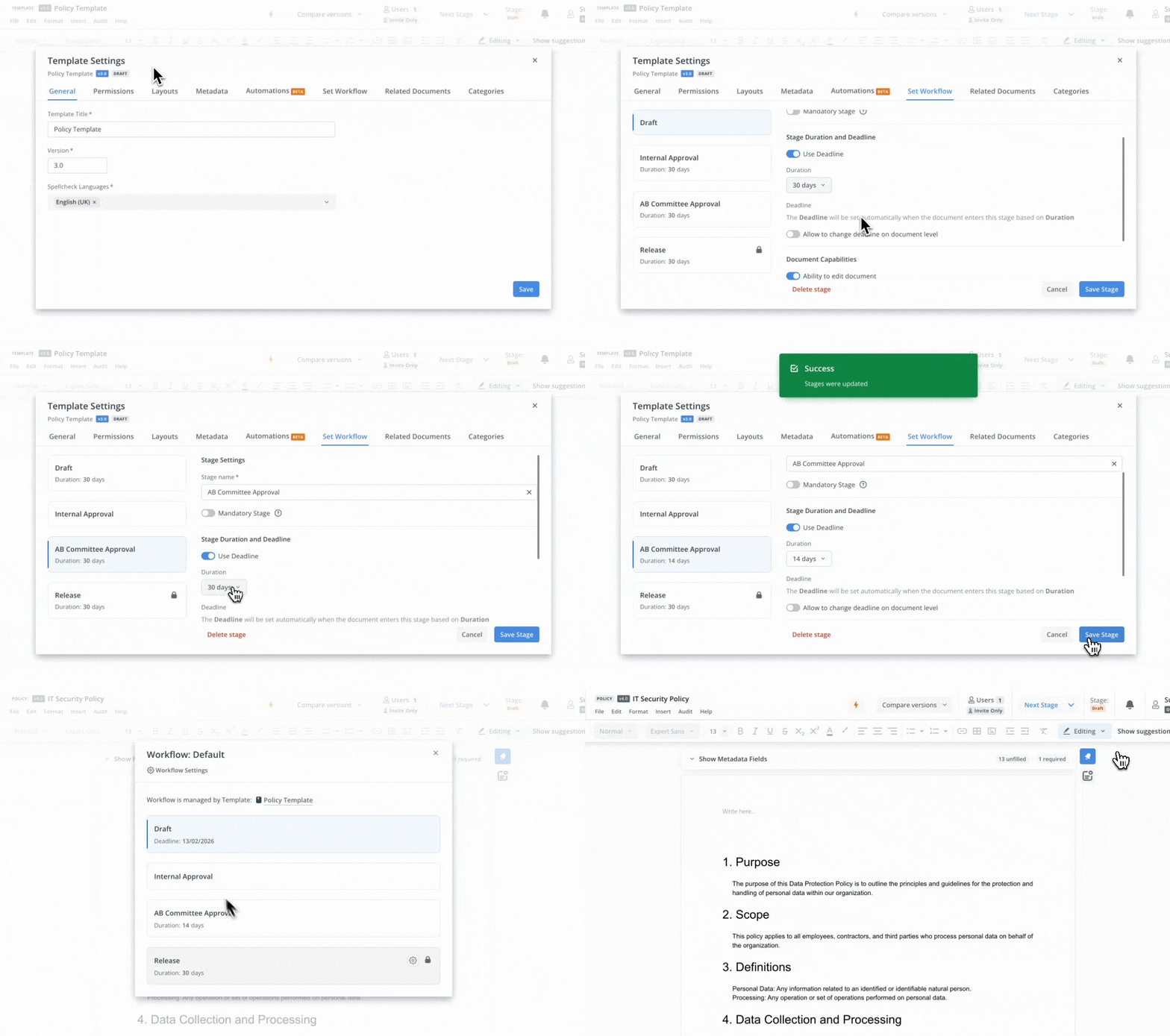
Notes
- Use cases:
- 1. Configure certain workflow stages without deadlines, allowing alignment with your internal review process or exceptions.
- 2. Rely on automatic calculation of stage deadlines based on template settings, so you don’t need to manually adjust deadlines each time a document enters a new stage.
- 3. Restrict who can edit deadlines supporting your organization's governance and compliance policies.
- To Consider:
- 1. 🔥 After migration, all future deadlines previously set for workflow stages will be removed. Instead of specific due dates for future stages, users will see duration information configured at the template level. Deadlines for each stage will only be set when a document enters that stage.
- 2. If the template is configured to allow deadline editing, the Document Owner can adjust stage deadlines.
- Roles such as Document Manager or Superadmin always have permission to update any stage deadline at the document level, regardless of template restrictions.
Note: they should add themselves as document owners to the document where they want to update the deadline. - 3. The duration field, when linked to a template, is not editable at the document level and can only be adjusted by updating the template itself.
3.7 [Workflow] Stage modals UI improvements
- Labels: 🔥 Changes in Behaviour
- Where: Policy Management
- Roles: Manager / Document Owner
- Product Areas: Workflow
- Summary: The stage modals in the document workflow have been redesigned to clarify which workflow applies to a document.
You will now see clearer modal titles when creating a new version or amending the current version, along with dedicated buttons for accessing workflow settings.
These improvements facilitate quicker and more accurate decisions when creating or modifying document versions, ultimately helping to reduce process errors and decrease training time for teams managing complex approval flows.
Move a Document to a Different Stage
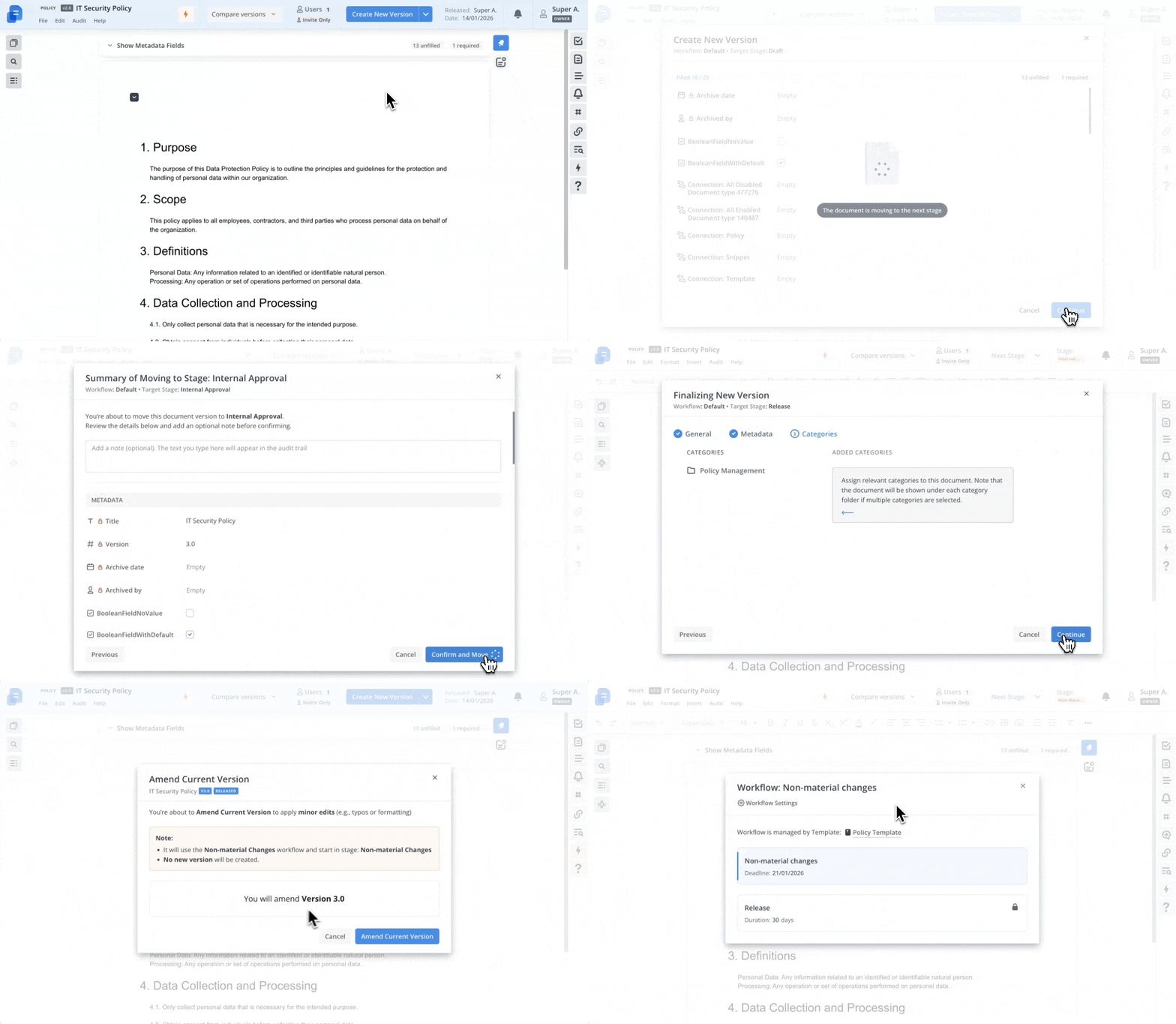
Notes
- Use cases:
- 1. Quickly confirm whether a document is using the default or Non-material Changes workflow directly from the stage modal, reducing the risk of sending a document through the wrong workflow.
- 2. Access workflow settings from the stage modal to fine-tune stage configuration, making it easier to keep workflows aligned with internal requirements.
___________________________________________________________________________________
Bug fixes & Improvements
As there are relatively fewer major bugs open before this release, there is no supplementary detailed fix page, so instead the details will be listed below.
Important bugs that were fixed
Policy Management
- Fixed an issue where suggestion that was quickly accepted after another one overwrote the previous one.
- Pre-Conditions:
- 2 suggestions are made for the same paragraph and no actual edits are made after.
- Steps to Reproduce:
- Accept the oldest one and quickly accept the one after.
- Expected Results:
- The 2nd suggestion to be accepted has to be done manually, not automatically like the 1st one.
- Dependencies & Downstream Impacts:
- Suggestions
- Editor
- Support Tickets:
- 37743473152
- Pre-Conditions:
Changes in Patches 2026.1
Policy Management
- Fixed an issue where Automation's action of updating metadata can't be set to today.
- Pre-Conditions:
- 2 suggestions are made for the same paragraph and no actual edits are made after.
- Steps to Reproduce:
-
Create document.
-
Start creating automation
-
Choose any trigger.
-
Add update metadata action.
-
-
Pick any date metadata and try to set ‘Calculate’ 0 days from today.
-
- Pre-Conditions:
-
- Expected Results:
- 0 can be set.
- Dependencies & Downstream Impacts:
- Automations
- Metadata
- Notifications
- Support Tickets:
- N/A
- Expected Results:
- Fixed an issue where an Approver from template-level had their default comment permission level not aligned with manually added Reviewer.
- Pre-Conditions:
-
Create template.
-
Add additional stage, add user A as approver to this stage.
-
Release template.
-
- Pre-Conditions:
-
- Steps to Reproduce:
- Create document from template.
- In any order:
-
Move it to additional stage.
-
Open permissions tab, add user B as a Reviewer with default comment level permission.
-
- Steps to Reproduce:
-
- Expected Results:
- Template-level approver is provided Reviewer role, specifically with Create & Read comment permission level, just like a manually added Reviewer.
- Dependencies & Downstream Impacts:
- Template
- Permissions
- Collaboration
- Support Tickets:
- N/A
- Expected Results:
- [Workflow] Clearer Stage Approvals Configuration
- The stage configuration modal for workflow approvals has been updated to show more information at once, improve the readability of approval settings, and make it easier to distinguish between mandatory and optional approvers.
These changes help administrators configure document approvals faster and with fewer mistakes - Use Cases:
- (On Templates) Configure stage approvals with a clearer view of mandatory and optional approvers, so you can set up each workflow stage confidently in one pass.
- Quickly scan who must approve a document at a given stage by using visual labels and lock icons, reducing the risk of changing the wrong approver.
- Review long approver lists without losing context, using sticky headings and improved spacing to reduce errors when updating complex workflows
- Consider:
- The settings modal height has been increased so that the Document Approvals section and at least three approvals are visible without scrolling, allowing to review more context in a single view.
- The section formerly called “Document Permissions” has been renamed to "Document Approvals" to better reflect its purpose, and the approvals search bar placeholder has been refined to make it clearer what users can search for. A short helper description now appears under the Document Approvals.
-
- Headings in the modal are configured to remain visible when scrolling (sticky headings), so users always see the section context while reviewing or editing longer lists of approvers.
- On Template level:
- Selected approvers now display visual labels for approval type (mandatory or optional) and a lock icon replaces the usual user/group icon for mandatory approvers, making it instantly clear which approvers cannot be removed at document level.
- The stage configuration modal for workflow approvals has been updated to show more information at once, improve the readability of approval settings, and make it easier to distinguish between mandatory and optional approvers.
- [Reporting] Alphabetical ordering for MI Reports
- MI Reports in the Policy Management module are now automatically ordered alphabetically (A–Z) by report name, making it easier to scan and locate the right report as your list grows.
This change reduces time spent searching and removes the need to remember when a report was created or rely on a largely random-feeling order.
- MI Reports in the Policy Management module are now automatically ordered alphabetically (A–Z) by report name, making it easier to scan and locate the right report as your list grows.
- [Approvals] Cleanup of approvals for archived content with mandatory approvals on stage
- Before:
- In some cases, when a document was archived or a paragraph was deleted, approvals were not fully cleared if the document had mandatory approvals on stage, which could cause approval steps to appear stuck or inconsistent.
- After:
- Approvals are now correctly cleared for archived documents and deleted paragraphs even when mandatory approvals on stage are used, so approval steps behave as expected and no leftover approvals remain.
- Before:
- [Admin Panel] Faster loading for large metadata fields
- Before:
- When opening a select metadata field with around 1,000 options in the Admin panel, the page could hang and stop responding, making it hard or impossible to review or edit the field data.
- After:
- Large select fields with about 1,000 options now load normally in the Admin panel, so you can view and update field data without freezes or slowdowns.
- Before:
- [Automation] Behaviour of Any and All conditions on select metadata
- Before:
- Some automation rules with “Any” or “All” conditions on select metadata behaved unpredictably, so actions could run when they should not, or be skipped even when all selected values matched.
- After:
- "Any” and “All” conditions on select metadata now evaluate correctly, so automation actions only run when your selected values truly meet the rule conditions, giving more reliable and predictable automations.
- Before:
- [Automation] Deleting automation rules now works as expected
- Before:
- When users tried to delete an automation rule for a document, the rule stayed in the list and continued to appear as if it still existed, which could cause confusion and unwanted actions.
- After:
- Deleting an automation rule now reliably removes it from the document’s automation list, so users can keep their automations clean and be confident that removed rules will no longer run.
- Before:
- New Capabilities [Editor] Add Words to Dictionary from Context
- Users with Dictionary management authority and Superadmins, can now add highlighted misspelled words directly to the active language dictionary from the editor context menu.
This action is available for the spell check language selected on the document, and appears at the end of suggestion lists.
After adding, the editor refreshes automatically, removing the highlight from the word, and a notification confirms the addition.
The context menu also includes an option to open the corresponding dictionary, which helps authorised users review and clean up previously added terms if needed - Use Cases:
- Add approved business terms directly from the editor when they are flagged as spelling issues, so you do not need to leave the document to update the dictionary.
- Reduce visual noise from repeated false spelling alerts by turning commonly used internal jargon or regulatory names into recognised dictionary entries in one click.
- Consider:
- Only Superadmins and users with dictionary management rights can add words from the editor; other users can see suggestions but cannot change the dictionary
- Users with Dictionary management authority and Superadmins, can now add highlighted misspelled words directly to the active language dictionary from the editor context menu.
- New Capabilities [Document Repository][Permissions] Show Group-Based Approvals in “Your Actions: Approvals”
- Users can now see approvals assigned to them via group membership directly in the “Your Actions: Approvals” indicator and within any document collection - Approvers column.
This means the count of pending actions, approver labels, filters, and approval history all consistently include both direct and group-based assignments, helping approvers understand why a document appears in their queue and reducing missed approvals.
Group approver entries are visually distinguished with a dedicated color and a “(You)” label next to the group name wherever the user is part of that group, including in the collection view, approver filters, and the approval confirmation details. - Use Cases:
- Your Approvals: View all documents that need your approval, including those assigned to groups you belong to.
- Approver Filter: Filter documents to see only items where you are an approver, either directly or via group membership.
- Approvals Details: Check who approved on behalf of a group with clear “Group (You)” and “by {User}” indicators in the approval popup.
- Group Visibility: Quickly understand why a document appears in your queue by seeing which approval group you are part of for that item.
- Consider:
- The “Your Actions: Approvals” counter and approver filters now include both direct and group-based assignments, which may increase the number of items shown if you belong to multiple approval groups.
- Users can now see approvals assigned to them via group membership directly in the “Your Actions: Approvals” indicator and within any document collection - Approvers column.
- New Capabilities [Metadata] Guided Metadata on Amendment & during NMC Stage
- Users can now configure dedicated metadata layouts for the "Create Amendment" action and for the Non-material Changes (NMC) stage in Content Management.
This helps ensure Document Owners and collaborators complete mandatory metadata at key workflow moments, improving consistency, reducing compliance gaps, and strengthening overall data quality before documents move forward. - Use Cases:
- Amendment Version Metadata: Prompt users to complete key metadata each time they create an amendment, so no critical context is missed before a new version is created.
- NMC Metadata Check: Require users to review and update specific metadata fields whenever a document enters the Non-material Changes stage.
- Consider:
- Layouts for the “Create Amendment” action and NMC stage only apply if you explicitly configure them. if not, the default metadata layout is used.
- Users can now configure dedicated metadata layouts for the "Create Amendment" action and for the Non-material Changes (NMC) stage in Content Management.
- [Automation] New metadata conditions no longer auto-select all values
- Before:
- When adding a select metadata field to an automation condition, all options were automatically selected, making it hard to set a specific condition and easy to apply rules to the wrong documents.
- After:
- New select metadata fields in automation conditions now start with no values selected, so you can clearly choose only the options you need and avoid accidental matches.
- Before:
- [Automation] Date conditions now match dashboard filters
- Before:
- Automation rules using “before today” for a metadata date sometimes did not run, even when documents fell within the expected past days range shown on the collections filters.
- After:
- Date conditions in automations now follow the same “past” and “next” logic as collections filters, so rules trigger reliably for documents within the chosen timeframe.
- Before:
- New Capabilities [Automation] Reminder emails now support more than 50 recipients - 500 is the new limit
- Before:
- When an automation tried to email more than 50 recipients on a document, some users did not receive the reminder at all because the email was limited to 50 addresses.
- After:
- Automations now send reminder emails in batches of up to 50 recipients per email, so everyone on large stakeholder lists still receives the notification even when there are more than 50 people. 500 recipients is now the limit.
- Before:
- New Capabilities [Editor] Bulk Paragraph Formatting: Font Family, Font Size, Clear Formatting, Text-Style [172.22]
- [Permissions] Removing users from documents created from templates
- Before:
- When you tried to bulk remove a user from documents created from a template, the user stayed on the document if they still had direct access on the template, and you saw an error instead of the removal happening.
- After:
- You can now successfully bulk remove users from documents created from a template, even if they still have direct access on the template itself, so document permissions stay as you expect.
- Before:
- [Notifications] No email sent when removing document access via bulk permissions
- Before:
- When an admin removed someone’s access to a document using Bulk Manage Permissions, the removed user could still receive an email notification saying their access was revoked.
- After:
- Removing document access via bulk permissions no longer triggers an email to the removed user, so users only get notifications when they should.
- Before:
Policy Portal
- [Connections] Keep related documents visible when changes are in progress
-
-
- Before:
- When a new draft of a related document was created, its connections moved into the changed state, that connection stopped appearing in the connections tab for the already published document on the Portal, making the link between those published documents temporarily invisible.
- After:
- When a new draft of a related document is created, connections in the changed state remain visible in the connections tab for the already published document on the Portal, so users can still see how published documents relate to each other while changes are being prepared.
- Before:
-
- [Metadata] Metadata now follows the selected document version
- Before:
- When switching between versions of a document in the Policy Portal, the metadata shown sometimes stayed from the previous version, which could cause confusion and incorrect reviews.
- After:
- Metadata now always updates to match the version you select, so you can trust that the details you see belong to the current document version you are viewing
- Before:
- [Editor] Document text now translated correctly
- Before:
- When users opened a document on the Policy Portal and used the browser’s built‑in translation, some page elements changed language but the main document content stayed in the original language.
- After:
- The document content on the Policy Portal now translates together with the rest of the page, so users can read the full document in their preferred language using the browser translation feature.
- Before:
All
- [Permissions] Bulk Permission Management UX Improvements
- Document Managers and Superadmins can now manage bulk document permissions in a clearer, more guided interface that reduces confusion, highlights which documents will be affected, and prevents applying changes by mistake when no valid selection has been made.
The updated layout introduces a dedicated “User and Groups Permissions” section, a more prominent “Add to the List” action, and smarter button states so admins always understand what will happen next in the bulk update flow. - Consider:
- Bulk permission changes are only applied when there are users or groups added to the list with a valid access level.
If the list is empty or no access level is set, the Apply button remains disabled and no updates are made. - The “Apply to” indicator shows how many documents will be impacted, so administrators should always review this context before applying changes to avoid unintentionally updating the wrong document set.
- Clearing or resetting the access level will return the control to its neutral state and can also disable Apply button, so please double-check both the users and groups list and the selected access level before confirming bulk operations.
- Bulk permission changes are only applied when there are users or groups added to the list with a valid access level.
- Document Managers and Superadmins can now manage bulk document permissions in a clearer, more guided interface that reduces confusion, highlights which documents will be affected, and prevents applying changes by mistake when no valid selection has been made.
- [API] Safer bulk updates for user metadata
- Before:
- When updating many users at once, it was possible to save incorrect values in user metadata fields (for example, entering an email where a user name was expected) without any warning.
- After:
- Bulk updates to user profiles now check that each value matches the expected format, preventing invalid entries and helping keep your user data clean and consistent.
- Before:
- [API] Treat external IDs the same, regardless of letter case
- Before:
- When updating users via the API, sending the same external ID with different capitalization (for example, test@company.com vs TEST@company.com) could create conflicts and failures instead of updating the existing user.
- After:
- The system now recognizes external IDs as the same regardless of letter case, so updates using differently capitalized external IDs reliably apply to the existing user instead of causing errors
- Before:
- [Search] Easier editing of the “Relative to today” date field
- Before:
- In “Relative to today” date filters, users could not simply delete the last digit in the number field, so changing a value (for example from 19 to 30 days) required awkward clicking and step-by-step adjustments instead of normal typing.
- After:
- Users can now freely backspace and type a new number in the “Relative to today” date filter, making it quick and straightforward to enter the exact number of days they need.
- Before:
In Development
- [Automation] Automation conditions now re-check the latest metadata after another rule updates it
- Before:
- If one automation updated a single‑select metadata field, another automation that triggered later could still evaluate its condition using the old value and run even when the condition was no longer true.
- After:
- Automation conditions now evaluate against the current metadata value (including changes made by other automations), so actions only run when the condition is actually met.
- Before:
- [Editor] Reset approvals after paragraph content changes
- Before:
- When users changed paragraph content after a document or paragraph had already been approved, the approval could remain marked as Accepted instead of being reset.
- After:
- Approvals are now reset to Pending when paragraph content is changed, so users can review and approve the latest version correctly.
- Before:
- [Automation] Faster saving for automation rules
- Before:
- Saving an automation rule could take a very long time, especially when the same rule was being updated more than once.
- After:
- Automation rules now save more reliably and without long waits, so users can update rules and continue their work faster.
- Before: