
Introduction
This quarter release contains the following:
- New features
- Automation
- Deep links and notifications for Test Runs
- CC and BCC for Send Email
- Flexible & Safe Test Run Pattern
- Global Automation Management in Admin Panel
- Configure Automation with Global & Local Visibility
- Metadata
- New System Fields: Document, Title, Modification Type
- Dynamic Values in Automation Conditions
- New System Fields: Stage Name, Stage Deadline
- Update Metadata with Dynamic Values
- Editor
- New Image Menu
- [Approvals] Guided Review Mode for Approvers
- Bulk Paragraph Formatting: Font Family, Font Size, Clear Formatting, Text-Style
- Table of Contents now highlights your current section
- Collapsible headings in Table of Contents
- Automation
- Bug fixes & improvements
- Policy Management
- API
- Patches
- Changes in Patches for 2026.2
For any questions, please email support@corlytics.com and we will further assist you.
__________________________________________________________________________________
Summary Changes
The release focuses heavily on Global Automation and Workflow governance, aiming to make automation easier to manage at scale and improve clarity of how automations apply across documents and lifecycle stages:
1. We make automation easier to govern, safer to test, and more powerful to configure across Policy Management. We introduce centralized automation oversight, clearer global and local visibility rules, safer document-specific test runs.
2. We also expand metadata-driven automation by adding dynamic values in conditions and metadata updates, plus new stage-related system fields that can be used across workflow-aware views, rules, and communications.
3. For document users, we improve the Editor experience with a more focused approval review mode, bulk paragraph formatting, collapsible table-of-contents navigation, and a more consistent image menu.
Please review all changes that have these labels and the related CONSIDER sections:
‼️ - Important to review
🔥 - Changes in behaviour
2026.2: DEPRECATION / CRITICAL CHANGES
Policy Management
-
[Editor] Multi-paragraph context menu removed for bulk formatting
- Before:
- When multiple paragraph were selected, users could apply some formatting actions from the paragraph context menu.
- After:
- Bulk formatting actions are now available from the new bulk operations panel.
The multi-selected paragraph context menu is no longer used for these bulk formatting operations.
- Bulk formatting actions are now available from the new bulk operations panel.
- Consider:
- 🔥 To apply bulk formatting, select the required paragraphs and use the new bulk operations panel.
- 🔥 Bulk formatting is disabled when more than 100 paragraphs are selected due to performance constraints.
- Before:
- [Automation] Send Email action recipients migrated to TO / CC / BCC
- Before:
- Automation “Send email” used one recipient list, so all configured recipients were handled as the main visible recipients of the email.
- After:
- The “Send email” action now separates recipients into TO, CC, and BCC. Existing automations are migrated to the new recipient fields so they continue to send emails without manual reconfiguration.
- Consider:
- 🔥 Review existing “Send email” actions after migration to confirm recipients are in the expected field.
- Use BCC for recipients who should receive the email without being visible to other recipients.
- Before:
- [Metadata] Title and Document added as System Fields
- Before:
- Document title and specific document targeting were usually handled through separate text fields, filters, or manual configuration.
- After
- Title and Document are now available as system metadata fields.
Title can be used as structured metadata inside content, and Document can be used to explicitly select one or more documents.
- Title and Document are now available as system metadata fields.
- Consider:
- 🔥 The Title field behaves as a single-line text field and follows metadata screen editability rules.
- Document is a document picker for explicit document selection.
- Before:
- [Approvals] Approver document view simplified
- Before:
- Approvers opened documents with the standard document toolbar and could access broader document controls while completing an approval.
- After:
- Approvers now open documents in a focused review mode.
Non-essential top-bar controls, including compare versions, are removed for approvers and replaced with stage context and approval actions.
- Approvers now open documents in a focused review mode.
- Consider:
- 🔥 Reviewers are shown the Changes view by default when opening a document for approval.
- 🔥 Owners and Editors see the Clean view by default and can switch to Changes if needed.
- The bottom approval bar is shown for document approval scenarios, but not for paragraph-level approvers.
- Before:
2026.2: IMPORTANT changes in User Interface, Text, etc...
All
- [Design system] Inter is now the default interface font
- You will now see the Inter font across CM applications, providing a more consistent and modern look and feel throughout the platform.
This update standardises typography so screens and UI elements render more consistently across browsers and operating systems.
- You will now see the Inter font across CM applications, providing a more consistent and modern look and feel throughout the platform.
- [Metadata] Unified metadata mentions across the platform
- You now get a more consistent, predictable experience when inserting metadata mentions (for example, metadata, connection pickers, and user pickers) across the platform, including document content, automation rules, etc.
- [Repository] Unify Field Modals Appearance
- Field-selection modals are now aligned across the wider platform (not just Automations), so users get the same look-and-feel when selecting fields in Filters (PM+PP), Documents tables (PM+PP), Metadata mentions inside content, and Automation.
This reduces UX inconsistencies, helps users learn one pattern they can reuse everywhere, and makes future delivery faster by standardising a single reusable modal pattern.
- Field-selection modals are now aligned across the wider platform (not just Automations), so users get the same look-and-feel when selecting fields in Filters (PM+PP), Documents tables (PM+PP), Metadata mentions inside content, and Automation.
- Modifications to the Text in the interface
- 1. Clear Selected -> Deselect All
2. (Varied / inconsistent empty-search wording) → No results found for '{query}'
3. (Varied / inconsistent no-data wording) → No values available
4. (Section naming inconsistent during search) → Search Results
- 1. Clear Selected -> Deselect All
New Capabilities
1. Automation
Automation in 2026.2 becomes easier to manage at scale, safer to validate, and clearer to govern.
Admins can now review automations centrally, define global and local visibility rules, test rules against specific documents before rollout, and configure automated emails with separate TO, CC, and BCC recipients. Together, these changes give teams more control over where automations apply, how they are monitored, and how safely they can be changed.
1.1 Deep links and Notifications for Test Runs
- Labels: ‼️ Important to review
- Where: Policy Management
- Roles: Manager
- Product Areas: Automation
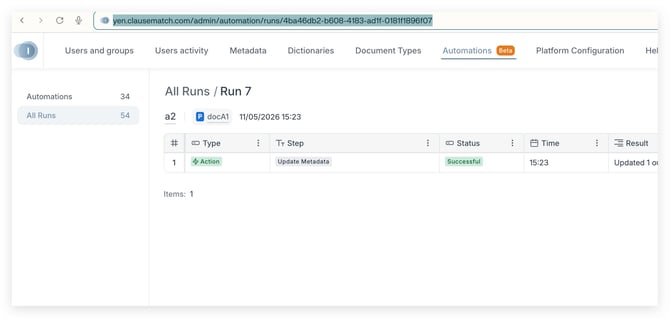
- Summary: Test runs are now easier to follow end-to-end.
Automation run pages have stable, distinct URLs (so you can deep-link to the exact run), the run view auto-refreshes while the execution is in progress, and users receive notifications when a test run starts, making it faster to open the right run details and confirm outcomes without manual page refreshes.
Notes
- Use cases:
- 1. Open the exact run details instantly: Start a test run and jump straight to the specific run page via a dedicated URL, instead of searching through a list of runs.
- 2. Track progress without manual refresh: Keep the run page open and see status updates automatically (auto-refresh) while the run is still executing.
- 3. Use notifications as an entry point: In Policy Management and the Admin Panel, use the “test run started” notification to navigate directly to run details.
- 4. Role-aware deep linking: Super admins are routed to the Global Automation page for the specific run, while other users are routed to the relevant automation tab/run page within a template/document where the automation is configured (when multiple locations exist, any valid one is used).
- To Consider:
- 1. 🔥 Access-dependent redirects: If a user opens a deep link but does not have access to that automation, they are redirected to the main PM (or PP) page and shown: No Access to Automation
- Tips:
- If you share a run link internally (e.g., with a teammate), it should open the same specific run page (subject to access permissions).
1.2 CC and BCC for Send Email
- Labels: ‼️ Important to review
- Where: Policy Management
- Roles: Manager / Document Owner
- Product Areas: Notifications / Automation
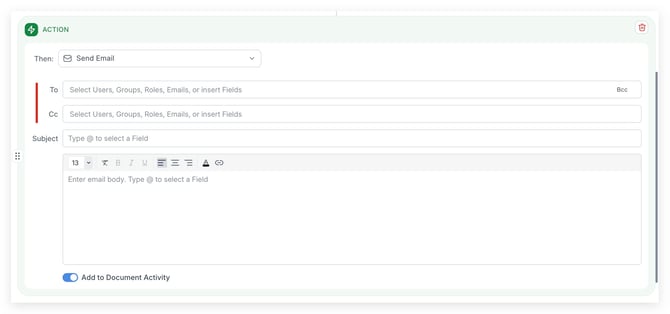
- Summary: You can now configure TO, CC, and BCC recipients within a single automation “Send email” action.
This lets you mirror your organisation’s standard email practices, control who is visible on an email, and keep sensitive recipients hidden when needed.
Notes
- Use cases:
- 1. Workflow Alerts: Automatically email document owners in TO, notify stakeholders in CC, and keep compliance teams in BCC when a policy moves to a new stage.
- 2 Incident Notifications: Send visible alerts to reviewers while quietly copying audit teams in BCC to monitor remedial actions.
- 3 Publication Updates: Inform end users in TO and keep managers in CC, while adding risk or legal teams in BCC for oversight.
- To Consider:
- 1. TO remains required while CC and BCC are optional, so every automated email must still have at least one main recipient configured.
- 2. Existing automations keep their current behaviour, as recipients are automatically mapped to the new fields to avoid unexpected changes in who sees what.
1.3 Flexible & Safe Test Run Pattern
- Labels: ‼️ Important to review
- Where: Policy Management / Admin Panel
- Roles: Manager / Document Owner
- Product Areas: Automation
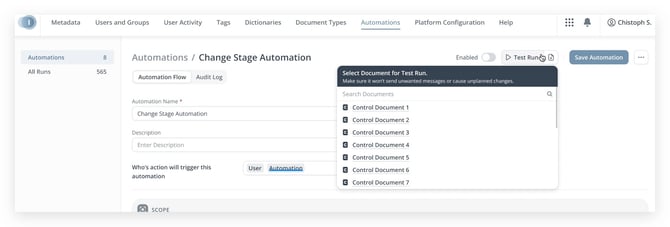
- Summary: You can now choose exactly which document an automation rule will run against before testing.
This gives you precise control over automation testing, allowing you to safely validate changes against specific documents before rolling out automations to your entire workflow.
This approach enables you to validate automations using dedicated dummy documents first, minimizing the risk of accidental updates to real production documents.
Notes
- Use cases:
- 1. Test Before Rollout: Create a new automation rule and test it against a dummy document first. Once you confirm the results are correct, enable the automation for all documents.
- 2. 🔥 Fix One-Off Issues: If a critical document didn't process correctly due to format issues, manually trigger the automation rule on just that document instead of re-processing everything.
- 3. Validate Rule Updates: Modify an existing automation rule (like changing approval routing logic) and run it against a sample document to preview the impact before rolling it out to all future documents.
- 4. 🔥 Emergency Processing: When a document arrives outside normal processing times or in an unexpected format, manually execute the required automation on that specific document without affecting your automated workflow rules.
1.4 Global Automation Management in Admin Panel
- Labels: ‼️ Important to review
- Where: Policy management / Admin Panel
- Roles: Manager
- Product Areas: Automation
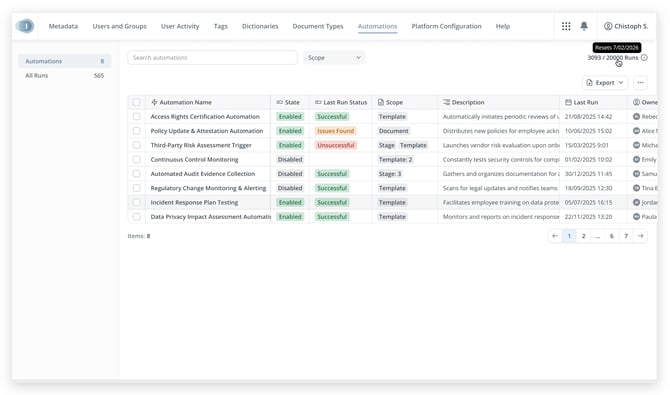
- Summary: Now you have a single, centralised view of all automations configured across the platform within the Admin Panel.
This global list makes it easier to monitor automation usage, spot issues, and maintain consistent governance without drilling into individual documents or templates.
From the Automation tab, you can see every automation in a table with core details. You can quickly narrow down what you need using search by automation name and filters.
You can also review a complete audit trail of all automation executions across the platform, making it easier for authorised admins to monitor automation behaviour, troubleshoot failures, and validate that key workflows are running as expected.
Notes
- Use cases:
- 1. Monitor High-Risk Automations: Filter to only see enabled automations with recent failures so you can prioritise investigation and fixes.
- 2. Review Ownership and Activity: Quickly identify who created or last modified each automation and how often it runs to support internal reviews.
- 3. Spot Idle or Overused Automations: Use run counts and last run dates to find automations that are rarely used or trigger very frequently.
- 4. Prepare Governance Reviews: Export or review the global list to understand where automation is used across your policy library before audits or process changes.
- 5. Troubleshoot failures faster: Filter to failed runs, open a run, and review the step-by-step log to identify which step failed and why.
1.5 Configure Automation with Global & Local Visibility
- Labels: ‼️ Important to review
- Where: Policy Management
- Roles: Manager / Document Owner
- Product Areas: Automation
- Summary: You can now control which documents your automations apply to using a clear scope configuration that supports both global and local visibility.
Superadmins and Document Managers (with Automation permissions) can define broad, cross-template rules with rich filters (document, template, stage), while document and template owners work with simpler, constrained scopes limited to the items they explicitly have access to.
Simple, single-filter automations (by document, template, or stage) are visible directly where you work, while more complex rules are managed centrally on the global automation page.
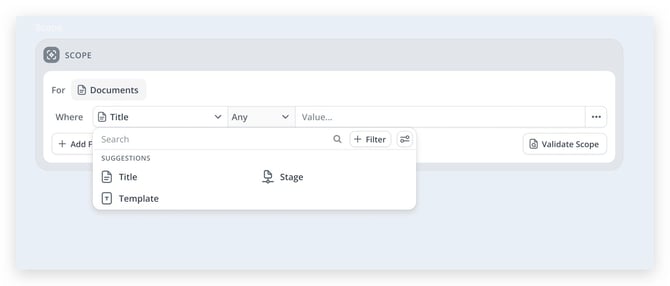
Notes
- Use cases:
- 1. Define global automation rules that safely target many documents (for example, all documents in a specific stage or template set) without needing to duplicate similar rules per template or document.
- 2. Start from a specific document or template and configure local automation scope that only includes items you are responsible for, while still seeing any additional in-scope items added by central teams (which you cannot accidentally remove).
- 3. Rely on contextual visibility: quickly see simple automations that affect a given document, template, or stage in-place, and use the global automation page to review and manage all rules that span multiple conditions.
- To Consider:
- 1. Global scope configuration is only available to Superadmins and Document Managers with Manage Automations authority; Other users with Manage Automation authority can only configure local scope on documents or templates they have explicit access to.
- 2. Local automation scopes are intentionally simplified: you can include only documents you can access and cannot add extra filters (such as additional stages or metadata), even if they are used in global rules.
- 3. 🔥 Automation visibility depends on complexity:
• Visibility: Local: simple single-filter rules (by document, template, or stage) appear in context (like inside document or template) and on global automation page.
• Visibility Global: rules with multiple filters or complex logic are only visible and editable from the global automation page.
2. Metadata
Metadata in 2026.2 becomes more dynamic, workflow-aware, and useful inside automation.
Automation rules can now use live document, workflow, user, and connection data in conditions and metadata updates, reducing the need for hard-coded rules or manual synchronisation. New stage-related system fields also make it easier to build workflow-aware views, reminders, escalations, and communications based on the document’s current stage context.
2.1 New System Fields: Document, Title, Modification Type
- Labels: 🔥 Changes in Behaviour
- Where: Policy Management / Policy Portal
- Roles: Manager / Document Owner / Document Editor
- Product Areas: Editor / Metadata / Automation
- Summary: You can now use three new system metadata fields: Document, Title, and Modification Type, consistently across Policy Management, Policy Portal, and API to better target, structure, and reuse content.
These fields behave in the same way wherever you configure metadata (collections, automation, metadata screens, metadata inside content, and API), so you can design more predictable workflows without duplicating configuration.- 1. The Title field can now be used as structured metadata inside content, for example on a document’s title page, so authors no longer need to manually retype or maintain separate title text.
It follows the rules defined by admins in metadata screens, meaning you can control where the Title is editable and where it is read-only, aligning document layout with governance rules. - 2. The Document field acts as a document picker that lets you explicitly select one or more documents instead of building long filter conditions to find the same list.
This makes it easier to configure automations and collections that should apply to a precise, hand-picked set of documents, without depending on metadata changes to keep that set stable - 3. The Modification Type field (None, Original, Modification) allows you to distinguish original documents from their modifications and use this information in automation conditions to drive different workflows, notifications, and metadata behaviours for modification documents.
- 1. The Title field can now be used as structured metadata inside content, for example on a document’s title page, so authors no longer need to manually retype or maintain separate title text.
Insert a Metadata Field into the Content
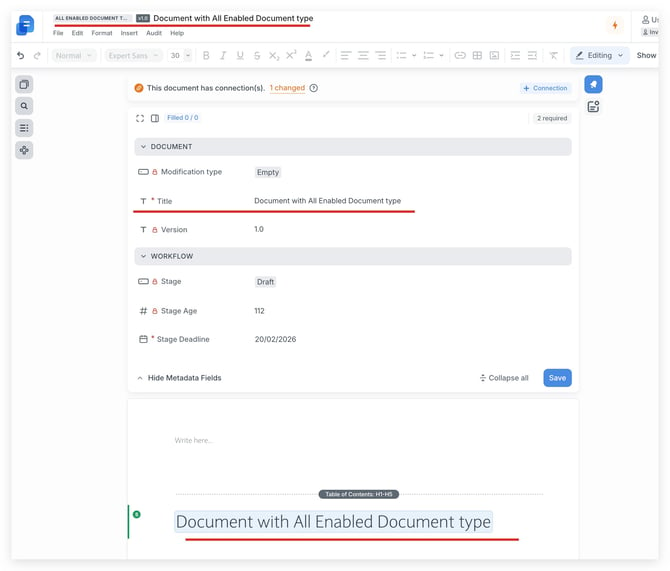
Notes
- Use cases:
- 1. Project Pack: Track a fixed set of key project documents in one collection using the Document picker, without relying on complex filters.
- 2. Modification Inbox: Route only modification documents into a dedicated review workflow using the Modification Type field in automation conditions.
- 3. Title-Synced Templates: Automatically pull the document Title into the title page or header inside content, so authors do not need to retype it.
- 4. Targeted Alerts: Send different notifications for originals and modifications by combining the Document picker and Modification Type in automation rules.
- To Consider:
- 1. 🔥 The Title field behaves as a single-line text field and its editability follows your metadata screen configuration (including Document settings, Top Navigation, and Move to stage), so review those rules before relying on it inside content.
- 2. The Document field is a document picker designed for explicitly selecting specific documents rather than replacing your existing metadata-based filters, so use it when you need a fixed, hand-picked list.
- 3 The Modification Type field is intended for targeting original documents vs modifications in automations and reporting; templates and snippets use the “None” value and will not be treated as originals or modifications.
- 4 Smart fields inside text fields (like Email Body) such as Document and Portal Document continue to behave as before, still showing links and icons to the latest versions, so you do not need to update existing configurations that rely on them.
2.2 Dynamic Values in Automation Conditions
- Labels: ‼️ Important to review
- Where: Policy Management
- Roles: Manager / Document Owner
- Product Areas: Automation
- Summary: You can now use dynamic, live data inside automation Conditions instead of relying only on manually entered static values.
This makes it easier to build precise, context-aware rules that follow what is actually happening in your workflows and document metadata at runtime.
Automation builders can configure Conditions to compare fields against dynamic values such as document metadata, workflow information, trigger data, or outputs from previous actions.
When a rule runs, these dynamic references are resolved in real time, so the same rule can adapt to different documents, stages, or approvers without needing separate hard-coded variants.
For fields like User or Connection Pickers, you can drill into nested fields (for example, selecting “Policy Owner/Department”) to express more granular logic without adding extra hidden metadata fields purely for automation.
Type-safe comparisons ensure that incompatible data types cannot be combined, helping prevent configuration mistakes and unexpected rule behaviour.
Overall, this reduces the number of custom, one-off rules and improves long-term maintainability of your automation setup.
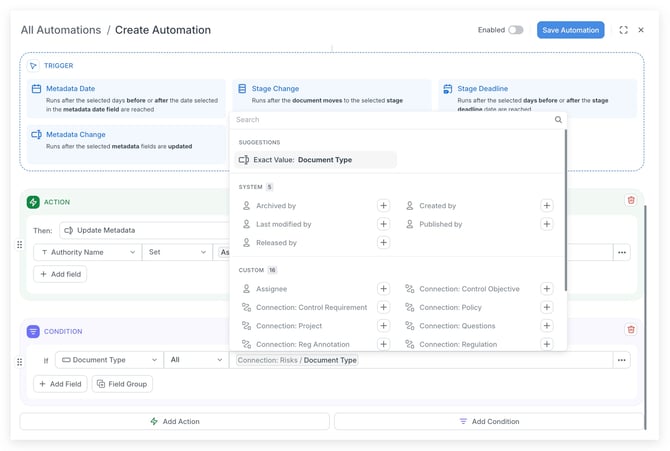
Notes
- Use cases:
- 1. Route by Department: Automatically move documents to the next workflow stage when the Document Owner’s department matches the triggering user’s department.
- 2. Approval-Based Progression: Advance a document to the next review stage as soon as a specific approval (for example, Global Compliance) is granted, without relying on hidden tracking fields.
- 3. Metadata-Driven Routing: Apply different actions (like updating fields) based on live document metadata such as region or policy type instead of maintaining separate rules per segment.
- 4. Role-Specific Actions: Trigger follow-up notifications only for documents where Policy Owner Department is equal to some value.
- To Consider:
- 1. Dynamic values are resolved at runtime, so rule outcomes depend on the latest document metadata, workflow state, trigger data, and prior action outputs available at the moment the automation runs.
- 2. Type-safe validation is enforced: you cannot compare incompatible data types (for example, date with user picker)
2.3 New System Fields: Stage Name, Stage Deadline
- Labels: ‼️ Important to review
- Where: Policy Management
- Roles: Manager / Document Owner
- Product Areas: Metadata / Automation / Reporting / Repository
- Summary: We have introduced new system metadata fields for Stage, Stage Age, and Stage Deadline that are available consistently across key parts of the platform, including Policy Management, the API, and configuration surfaces.
These fields are now aligned so that you can work with the same stage-related data in collections, automation, metadata screens, and within document content, without having to learn different variants in each area.
These new system fields are:
• Stage (single-select): the document’s current stage name
• Stage age (number): how long the document has been in its current stage
• Stage deadline (date): the deadline for the current stage (when applicable) This makes it easier to report on workflow state, create workflow-aware views, and build automations that react to or communicate the current stage context.
Insert a Metadata Field into the Content
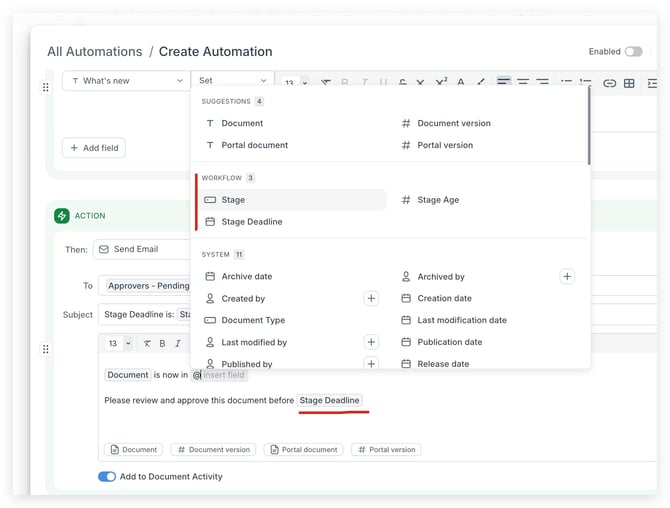
Notes
- Use cases:
- 1. Trigger reminder emails when Stage Deadline is approaching and automatically insert the exact deadline and Stage Name into the email subject and body (for example, “Legal Review due on 28/03/2026”).
- 2. Send escalation emails when Stage Age exceeds a threshold, including how many days the document has been in the current stage so managers can quickly identify bottlenecks.
- 3. Build automation rules that behave differently based on Stage (e.g., different email templates or recipients for “Drafting”, “Compliance Review”, and “Final Approval”), with Stage Name used as a smart field in the email content.
- 4. Combine Stage, Stage Age, and Stage Deadline in conditions to drive time-bound alerts and actions, such as assigning tasks or notifying owners when stages are overdue or close to their cut-off date
- To Consider:
- 1. 🔥 Stage-related fields are not shown on the Portal, so end users will continue to see only the information they need when browsing published documents
2.4 Update Metadata with Dynamic Values
- Labels: ‼️ Important to review
- Where: Policy Management / Admin Panel
- Roles: Manager / Document Owner
- Product Areas: Automation / Metadata
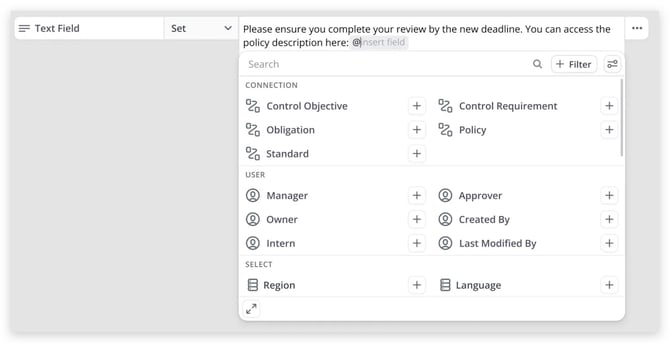
- Summary: You can now configure automation rules to dynamically set or copy metadata values in the Update Metadata action using dynamic values such as document metadata, or nested fields from user or connection pickers.
This allows you to keep metadata like Region, Department, Owners, and linked records synchronized across documents without manual updates or custom logic.
The configuration UI only shows compatible field types for the selected target field, helping prevent type mismatches and reducing configuration errors.
When a rule runs, metadata values are resolved at execution time so that updates always reflect the latest underlying relationships, improving consistency across your workflows.
Notes
- Use cases:
- 1. Automatically align document-level metadata with the nested values of the User or Connection picker. For example, copy Region and Department values from the User Picker, such as Policy Owner, to reduce manual re-entry on the document level.
- 2. Keep metadata in sync between parent and child documents by copying values from a parent document via Connection Picker fields, helping Document Owners maintain consistent information across a document hierarchy.
- 3. Support repeatable metadata operations (such as enforcing ownership, region routing, or departmental responsibility) at scale so that Approvers and end users always see accurate, consistent metadata on published documents in the Portal.
- To Consider:
- 1. Dynamic values are available only from compatible metadata types. For example, for date fields, you can use only other date fields' values, not values from other types. Text fields can use information from any field type.
- 2. 🔥 When using nested fields, for example, from a User or Connection Pickers, only the first user or document is used to check its nested field value. If there are multiple values in the field, the others are ignored.
- 2.1. If the selected nested field from a User Picker or Connection Picker is empty at runtime, the Update Metadata action is skipped, and the automation run is marked with an error indicating that the source field value is empty.
3. Editor
Editor improvements in 2026.2 make document review, navigation, and formatting more focused and consistent.
Approvers now get a guided review experience that highlights changes and keeps approval actions in one place. Editors can apply formatting to multiple paragraphs at once, readers can navigate long documents more easily with collapsible table-of-contents headings, and image actions now use a clearer, more consistent menu.
3.1 New Image Menu
- Labels: 🔥 Changes in behaviour
- Where: Policy Management
- Roles: Manager / Document Editor / Document Owner / Document Reviewer
- Product Areas: Editor
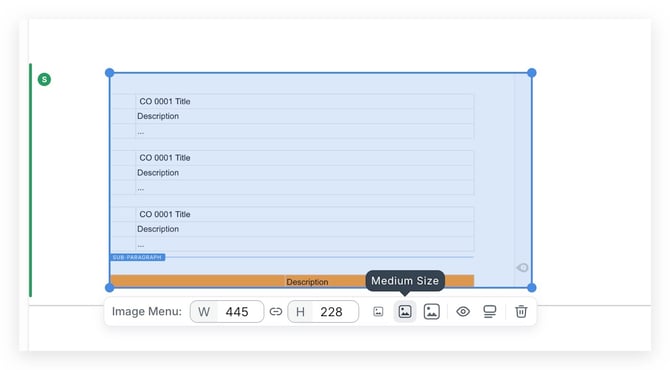
- Summary: Images now use a redesigned context menu that matches the Table menu styling and interaction patterns, making image actions feel consistent across the editor.
The menu includes clearer actions (such as Image Preview, Image Details, and Delete), improved hover/highlight states, and tighter input rules for resizing so users can adjust images more predictably without UI glitches.
Notes
Use cases:- Use Cases 1. Resize an image more reliably using a dedicated pixel-size input with clearer constraints, so accidental oversized values are prevented. 2. Preview and inspect an image quickly via explicit Image Preview and Image Details options, reducing guesswork about what an image contains. CONSIDER 1.
3.2 [Approvals] Guided Review Mode for Approvers
- Labels: 🔥 Changes in behaviour
- Where: Policy Management
- Roles: Document Reviewer
- Product Areas: Collaboration / Editor
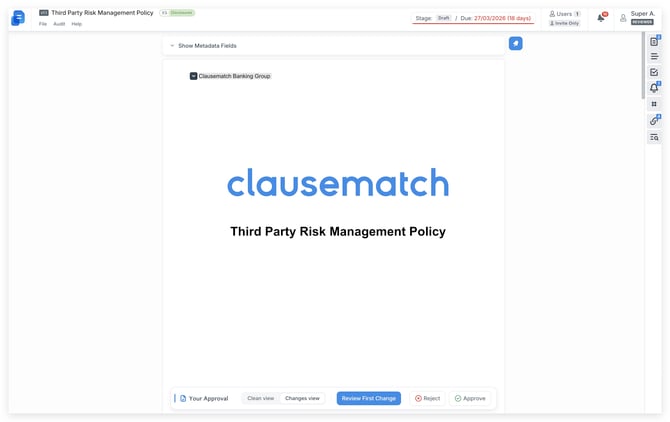
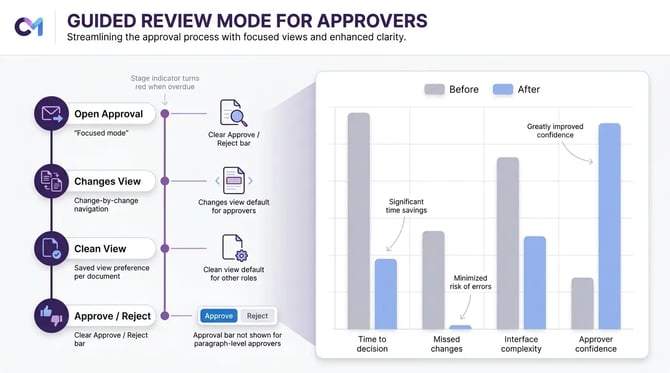
- Summary: All occasional approvers now land in a focused approval mode that immediately shows what has changed in the document and provides clear Approve/Reject actions in one place.
The approval bar, top navigation, and bottom actions have been simplified so approvers can complete their task without needing to understand advanced comparison tools or the full editor interface.
Approve or Reject a Document or Paragraph
Notes
- Use cases:
- 1. Open approvals directly from email or in‑app notifications and review all changes in a focused mode without learning comparison tools.
- 2. Use the “Changes” and “Clean” views to switch between a markup view of edits and a clean reading view while keeping approval actions in the same place.
- 3. Navigate change by change using “Review first change” and next/previous controls to ensure no updates are missed before approving.
- 4. Check the current workflow stage and due date at the top of the document to prioritise which approvals to complete first.
- To Consider:
- 1. Who sees the Changes view by default: Reviewers are automatically shown the Changes (diff) view when opening a document for approval. All other roles, including Owners and Editors, see the Clean view by default and can switch to Changes if needed.
- 2. Approval bar availability: The new bottom approval bar is shown for all document approval scenarios across all roles that have at least one document approval, but it is not shown for paragraph-level approvers.
- 3. Stage indicator colour: The progress indicator for the active approval stage displays in green when the stage deadline has not been reached, and in red if the stage is overdue.
- 4. 🔥 Top bar changes for approvers: When approvers open a document, the compare versions button and other non‑essential controls are removed from the top toolbar, replaced with a stage tag that shows the current stage name and due date.
- 5. View preference is saved per document: Once an approver selects Changes or Clean view, their preference is stored for that specific document. Reloading the page will restore the previously selected view.
3.3 Bulk Paragraph Formatting: Font Family, Font Size, Clear Formatting, Text-Style
- Labels: 🔥 Changes in behaviour
- Where: Policy Management
- Roles: Manager / Document Owner / Document Editor
- Product Areas: Editor
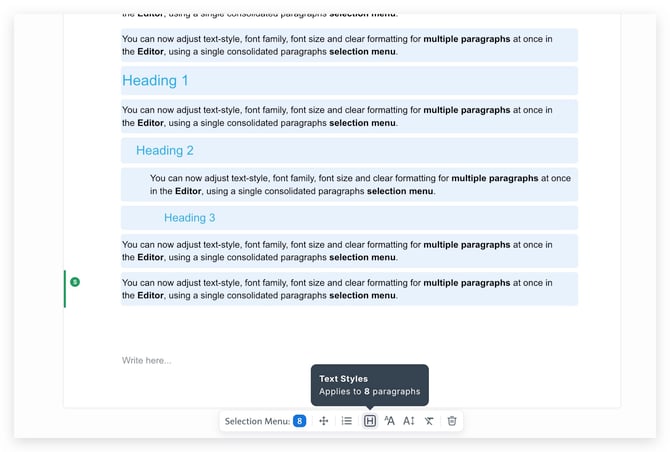
- Summary: You can now adjust text-style, font family, font size and clear formatting for multiple paragraphs at once in the Editor, using a single consolidated paragraphs selection menu.
You can also apply text style (Normal, Heading 1, etc) to multiple paragraphs at once ensuring consistent formatting across large sections of a document with just one action.
When a text style is applied in bulk, the editor resets conflicting inline styles (such as font family, size, bold, italic, underline, and color) so that all selected paragraphs follow the canonical style definition for their type, similar to how paragraph styles work in Microsoft Word.
This makes it easier to normalise legacy or imported content to your organisation’s standards, without editing each paragraph individually.
Notes
- Use cases:
- 1. Normalize selected paragraphs to a single font family and size in one action, so long sections match your organization’s formatting rules.
- 2. Clear inconsistent inline styles from multiple paragraphs at once to clean up imported or legacy content.
- 3. Apply bulk formatting while automatically skipping locked paragraphs, keeping protected content unchanged.
- 4. Undo or redo a bulk formatting change in one step if you want to quickly revert or reapply updates across all selected paragraphs.
- To Consider:
- 1. 🔥 Some formatting options may apply only to part of your selected paragraphs. Check tooltips and selections before applying changes.
- 2. 🔥 Applying a new font family or size will clear conflicting inline styles in selected paragraphs, which may remove ad‑hoc overrides you previously applied.
- 3. 🔥 Bulk text style updates will reset conflicting inline formatting (font family, size, bold, italic, underline, colour) to match the defined text style for that paragraph type, similar to how such Paragraph styles (not Character styles) work in Word.
- 4. 🔥 Re-applying the same text style to already-styled paragraphs will remove inline overrides and revert them back to the canonical style definition for that style.
- 5. All bulk operations are recorded as single undo/redo steps, so use undo to revert changes across all affected paragraphs at once.
- 6. 🔥🔥🔥 Bulk formatting (Text Styles, Font Family, Font Size, Clear Formatting) is disabled when more than 100 paragraphs are selected due to performance constraints.
- 7. 🔥 Some bulk operations still behave in line with earlier editor limitations: Toggle Numbering remains non‑atomic in undo/redo, and lock/unlock in templates cannot be undone or redone.
3.4 Table of Contents now highlights your current section
- Labels: ‼️ Important to review
- Where: Policy Management / Policy Portal
- Roles: Manager / End-User / Document Reviewer / Document Editor / Document Owner
- Product Areas: Editor
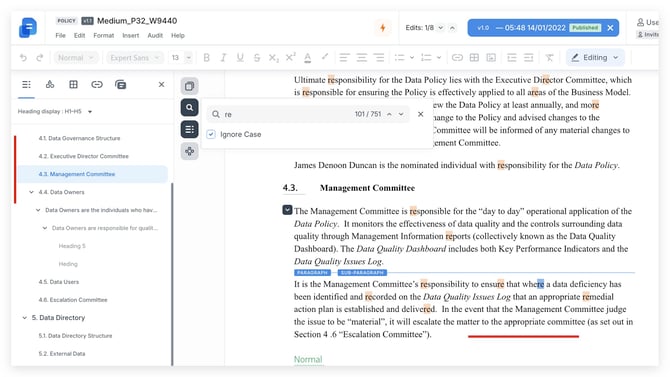
- Summary: When reading long documents, the Table of Contents now automatically highlights the heading that matches the section currently in view.
This also works after non-linear navigation, for example, when you jump to a result from in-document search or navigate via diff-related flows, so you always know “where you are” in the document without manually scanning the TOC.
Notes
- Use cases:
- 1. While scrolling through a long document, quickly see which section you’re currently reading because the TOC highlights the active heading automatically.
- 2. After using Find / in-document search and jumping to a match, immediately see the corresponding section highlighted in the TOC for better orientation.
- 3. After navigating via diff-related flows (where applicable), keep the TOC in sync with your new position so you don’t lose context.
- To Consider:
- 1. 🔥 The “active heading” is determined based on the primary section currently in view, so the highlighted TOC item may change as soon as you scroll into the next section boundary
- Tips:
- This is especially useful when you move around the document using shortcuts/search rather than scrolling linearly.
3.5 Collapsible headings in Table of Contents
- Labels: ‼️ Important to review
- Where: Policy Management / Policy Portal
- Roles: Manager / End-User / Document Reviewer / Document Editor / Document Owner
- Product Areas: Editor
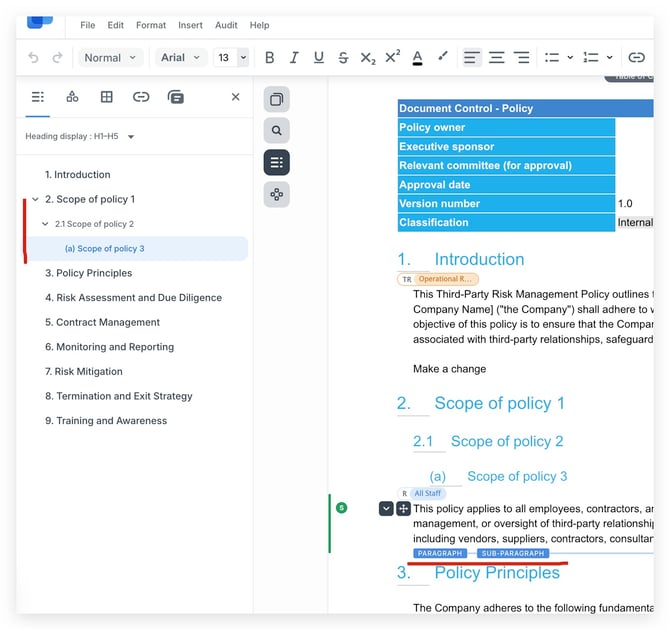
- Summary: The Table of Contents now supports collapsible heading levels (similar to hierarchical metadata), helping readers and editors navigate long documents more efficiently in both Policy Management and Policy Portal.
Collapse/expand state is remembered for the session, and the TOC better reflects where the user is when they navigate via headings.
Notes
- Use cases:
- 1. Collapse sections you’re not working on to keep the TOC short and focused when navigating large documents.
2. Keep your preferred TOC expansion state while you work, since collapse state is remembered for the session (and shared between PM/PP).
3. Jump to a section by clicking a heading and immediately orient yourself—your current section is highlighted, and (in editing mode) the cursor is placed at the target heading.
- 1. Collapse sections you’re not working on to keep the TOC short and focused when navigating large documents.
- To Consider:
- 1. The “active heading” highlight is designed to follow navigation interactions (e.g., clicking a paragraph/heading).
Depending on context, it may not continuously update just from scrolling alone.
- 1. The “active heading” highlight is designed to follow navigation interactions (e.g., clicking a paragraph/heading).
___________________________________________________________________________________
Bug fixes & improvements
Important bugs that were fixed
Policy Management
- [Editor] Fixed an issue where the error wasn't clear when image size exceeded the limit.
- Before:
- When users typed image size in the document header above the allowed limit, the editor did not always show an error message, even though the size was too large.
- After:
- The editor now shows the correct error message when an image exceeds the maximum size, helping users understand and correct the issue.
- Dependencies & Impact:
- Editor
- Support Request ID:
- 43712397148
- Before:
- [Automation] Document search in the connection picker values is no longer case-sensitive.
- Before:
- When configuring an automation rule to update a connection picker metadata field, searching for a document could return different results depending on letter case.
- After:
- Document search now works consistently regardless of letter case, making it easier to select the correct document in automation metadata updates.
- Dependencies & Impact:
- Automation
- Metadata
- Connections
- Support Request ID:
- N/A
- Before:
API
- [Configuration] Document types are fully removed when replaced through the API.
- Before:
- When a document type was deleted and replaced through the API, it could remain in configuration areas and cause parts of Policy Management to display incorrectly.
- After:
- Deleted document types are now removed correctly from configuration areas, so Policy Management remains consistent after a document type is replaced.
- Dependencies & Impact:
- API
- Document Types
- Before:
-
- Support Request ID:
- N/A
- Support Request ID:
___________________________________________________________________________________
Patches
Changes in Patches for 2026.2
In Development
- [Audit & Versioning] Show correct authors in exported version comparisons
- Before: When users exported a document with version comparison, changes in the DOCX file could be shown as made by “Someone” instead of the actual author.
- After: Exported version comparisons now show the correct user names for changes, making document review and audit history clearer.
- [Workflow] Clearer handling when a document cannot move to a stage
- Before: A document could be blocked from moving to a workflow stage when that stage included an archived approver group, without a clear explanation for users.
- After: Stage movement now handles archived approver groups more clearly, helping users understand and resolve workflow blockers faster